
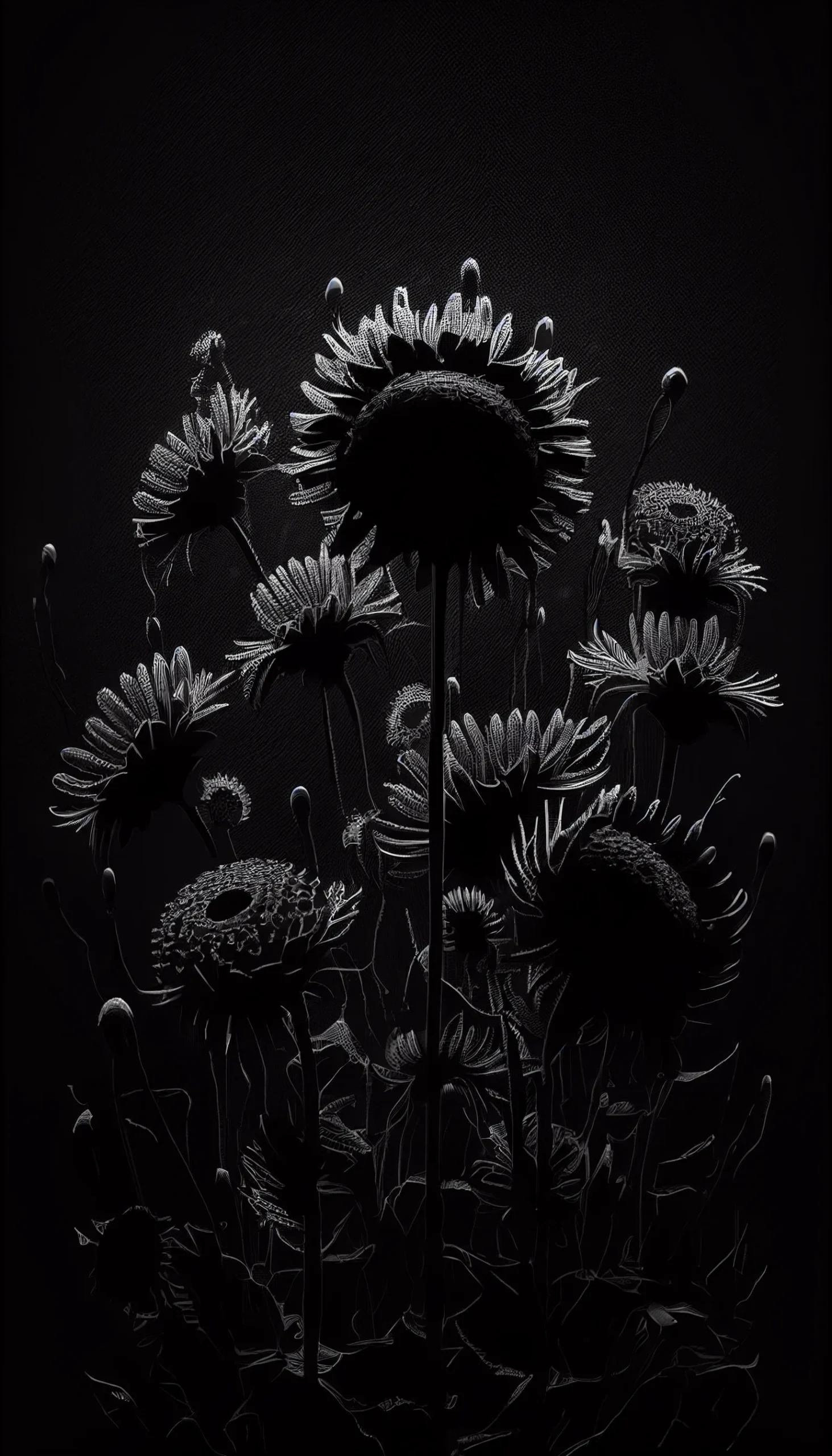
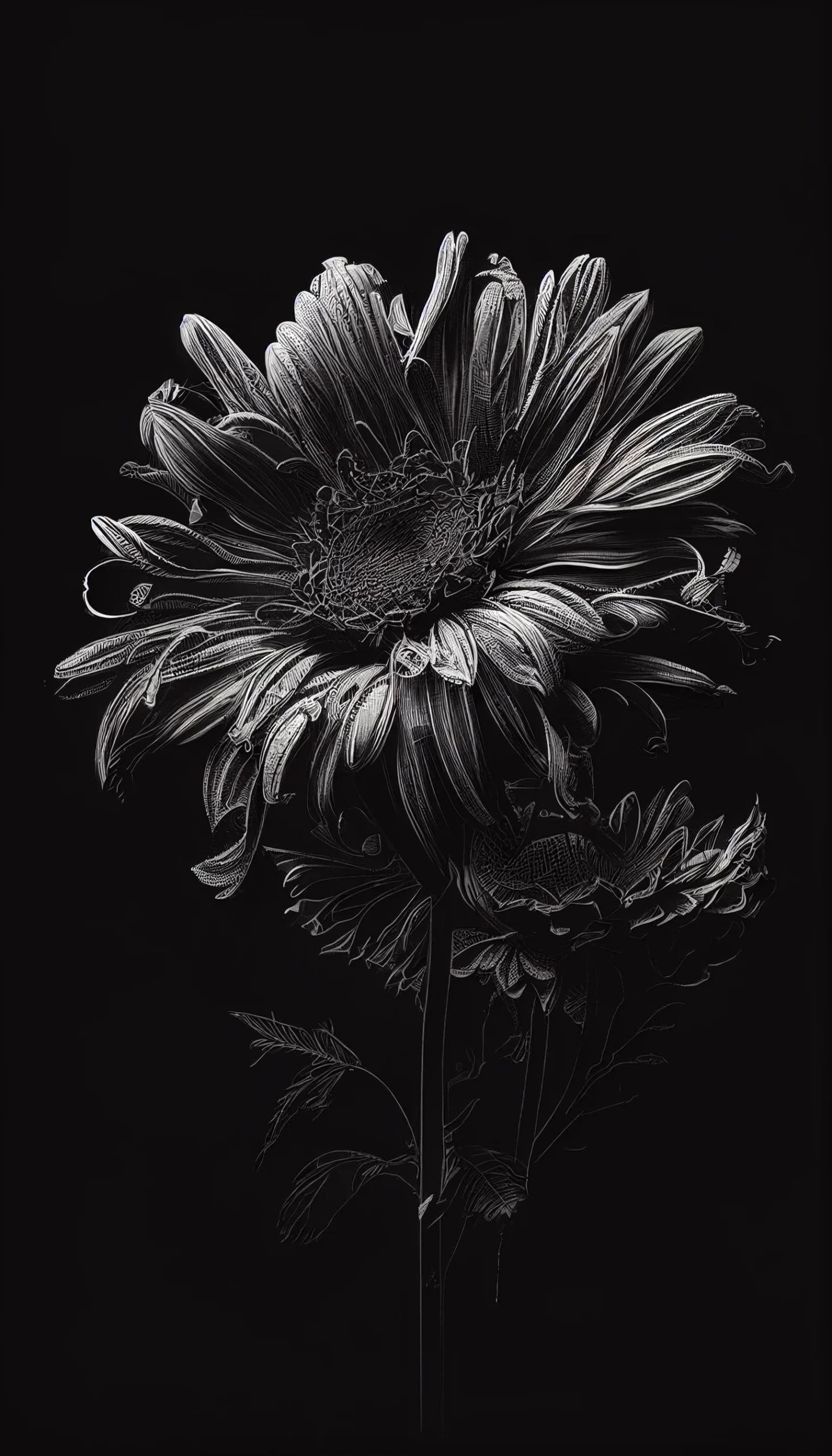
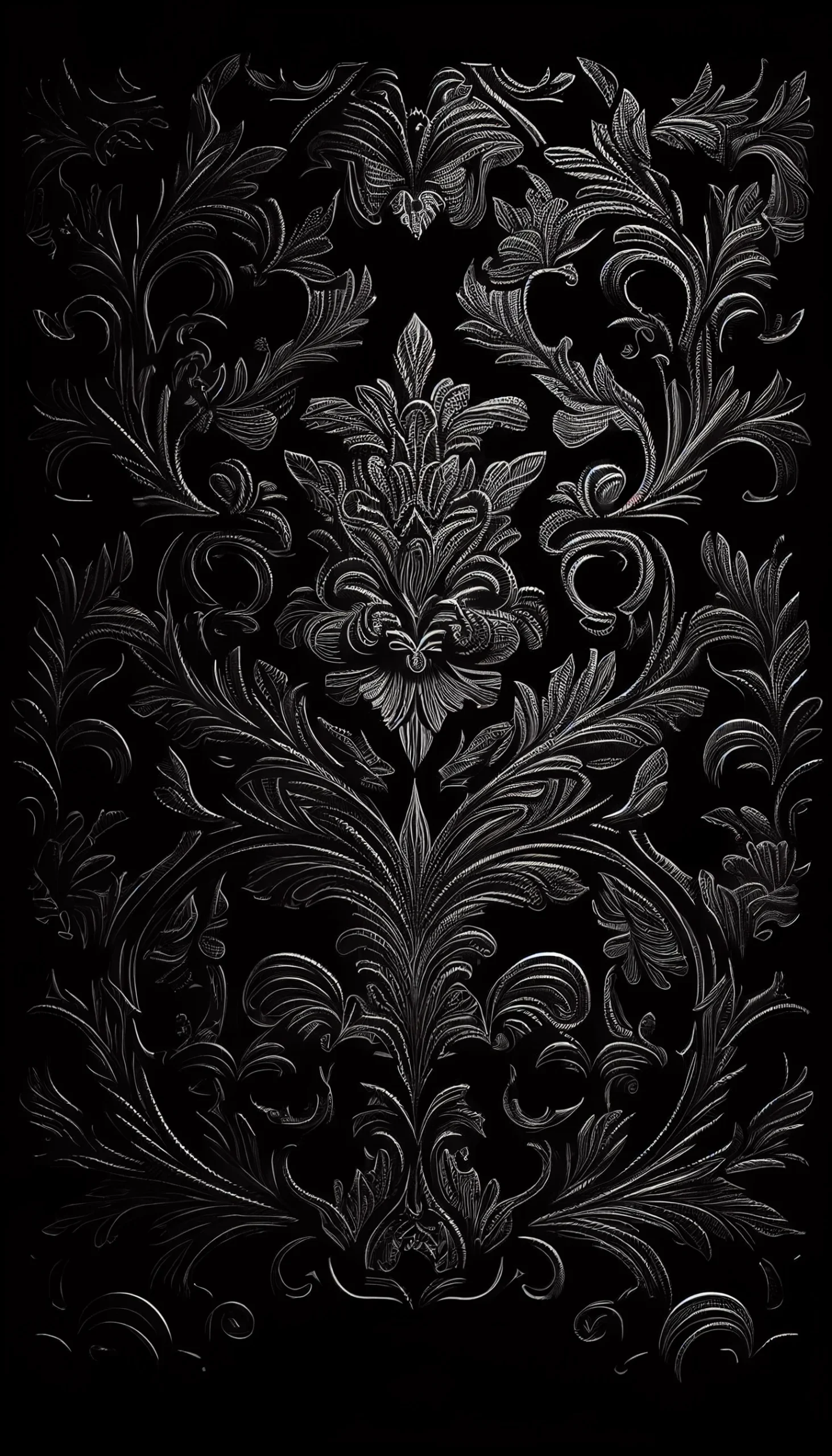
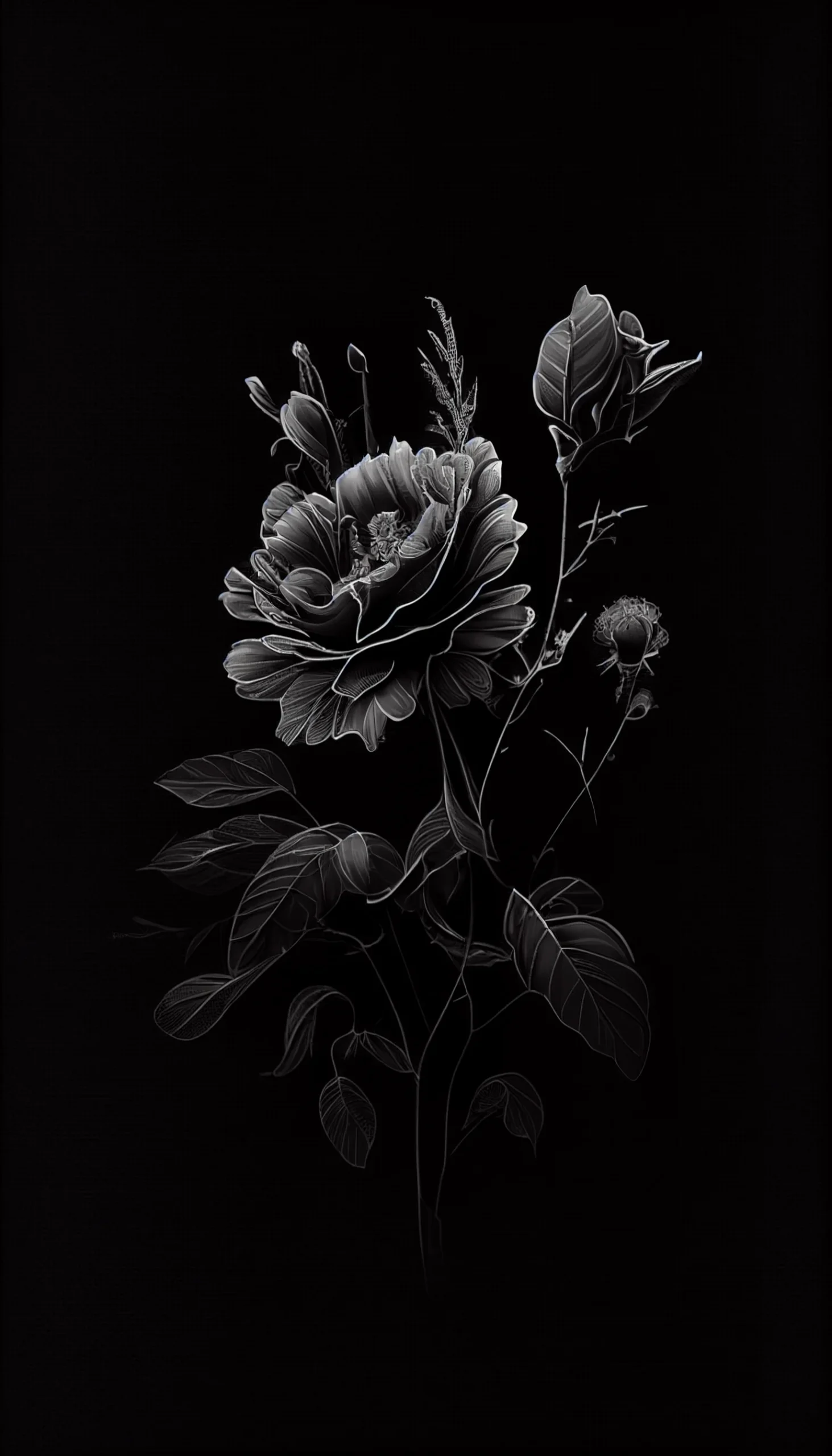
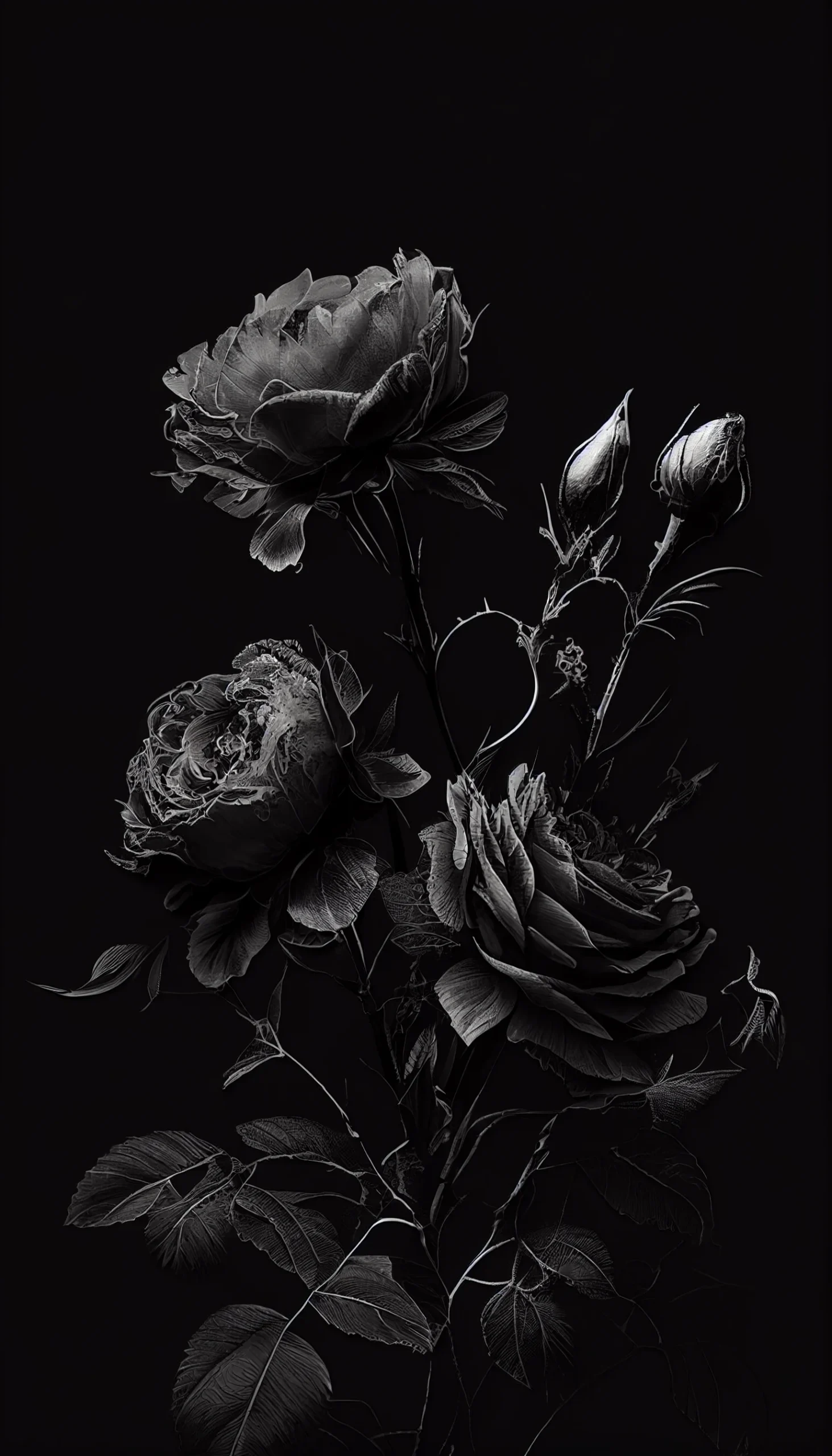
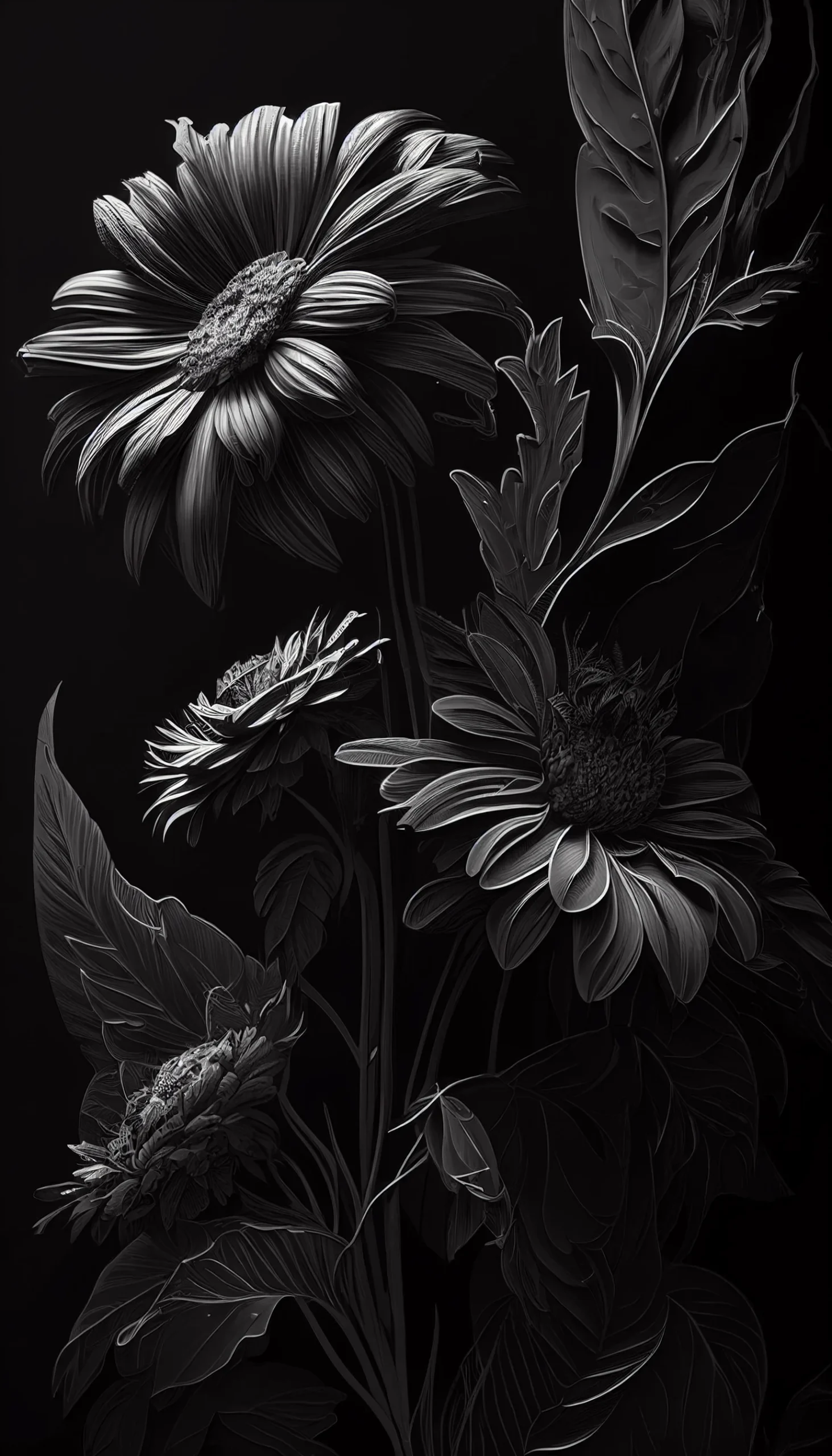
This collection has 11 black aesthetic iPhone wallpapers with dark flowers, roses, skulls, portraits and simple black backgrounds. The largest files are 1463 × 2560 pixels; one image is 960 × 1664. They are high-resolution phone backgrounds, but they are not 4K files.
Open the full-size image before saving it. On iPhone, touch and hold the image or use the browser share menu, then preview the crop in Wallpaper settings before applying it. Different iPhone models use different screen ratios, so a small crop is normal.
For a larger dark collection, see our 35 black aesthetic phone wallpapers.
Choose a dark wallpaper by how you use your iPhone
| Style | Best use |
|---|---|
| Minimal black background | Home Screen with lots of apps or widgets |
| Black flowers or roses | Lock Screen or a cleaner Home Screen |
| Skull design | Lock Screen, where the central artwork stays visible |
| Portrait-style image | Lock Screen; check that the clock does not cover the face |
Dark does not automatically mean readable. A black wallpaper with a lot of texture can still make icons harder to scan, while a very simple dark background can be excellent behind apps.
11 black aesthetic iPhone wallpapers
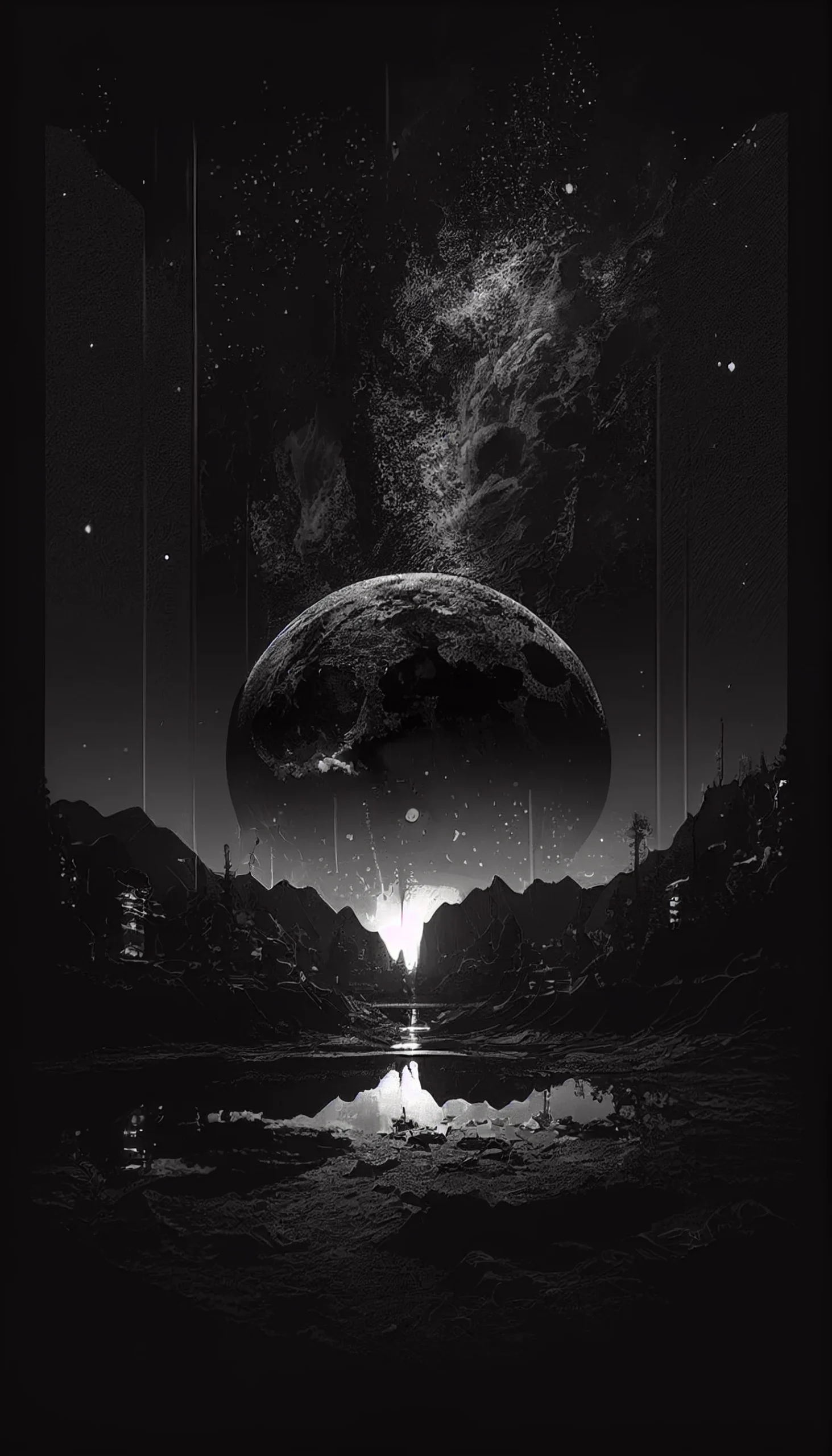
Do a 60-second lock-screen test before choosing
A dark image can look excellent in the gallery and still be awkward once iOS adds the clock, widgets and notifications. Before settling on one, preview the full-size file on your actual Lock Screen and check four things:
- Clock clearance: the main face, rose, skull or flower should not sit directly behind the time. Reposition the crop before zooming in.
- Top-edge safety: keep important details away from the Dynamic Island or camera area. If the subject is already tight against the top edge, choose a roomier image.
- Text contrast: glance at the clock rather than studying it. If you cannot read it instantly, the area behind it is too busy or too similar in value.
- Notification space: imagine two or three notifications stacked in the lower half. A wallpaper can work beautifully as an empty Lock Screen but lose its focal point once alerts arrive.
For the Home Screen, use a different test: open the page where you keep the most apps and widgets. If icon labels or widget text disappear into the artwork, use one of the plainer black backgrounds there and keep the more detailed rose, skull or portrait image for the Lock Screen. You do not need to use the same wallpaper on both screens.
Fix the three most common dark-wallpaper problems
| Problem | What is happening | Better fix |
|---|---|---|
| The subject looks cropped | The image ratio and your iPhone screen ratio differ. | Reduce the zoom and reposition first. If important details still fall outside the frame, choose a design with more empty space rather than stretching the image. |
| The wallpaper looks softer than the gallery image | A screenshot or compressed preview was saved instead of the source file. | Use the “Open full-size wallpaper” link and save that file directly. |
| Apps disappear into the background | The Home Screen artwork has too much local texture or contrast. | Move the detailed image to the Lock Screen and use a simpler black option behind apps and widgets. |
Choose by focal-point position, not just by style
For Lock Screens, the safest compositions have one obvious subject in the middle or lower-middle area and quieter space near the top. Portraits need the most careful preview because a face attracts attention immediately; even a small clock overlap can feel accidental. Flowers and roses are more forgiving because a slight crop can still look intentional. Minimal black designs are the least sensitive to device ratio and usually make the most reliable Home Screens.
If you switch between Focus modes, consider assigning the detailed artwork to a personal or evening Lock Screen and the plain black option to a work setup. That gives the collection a practical use beyond simply choosing the image you like most.
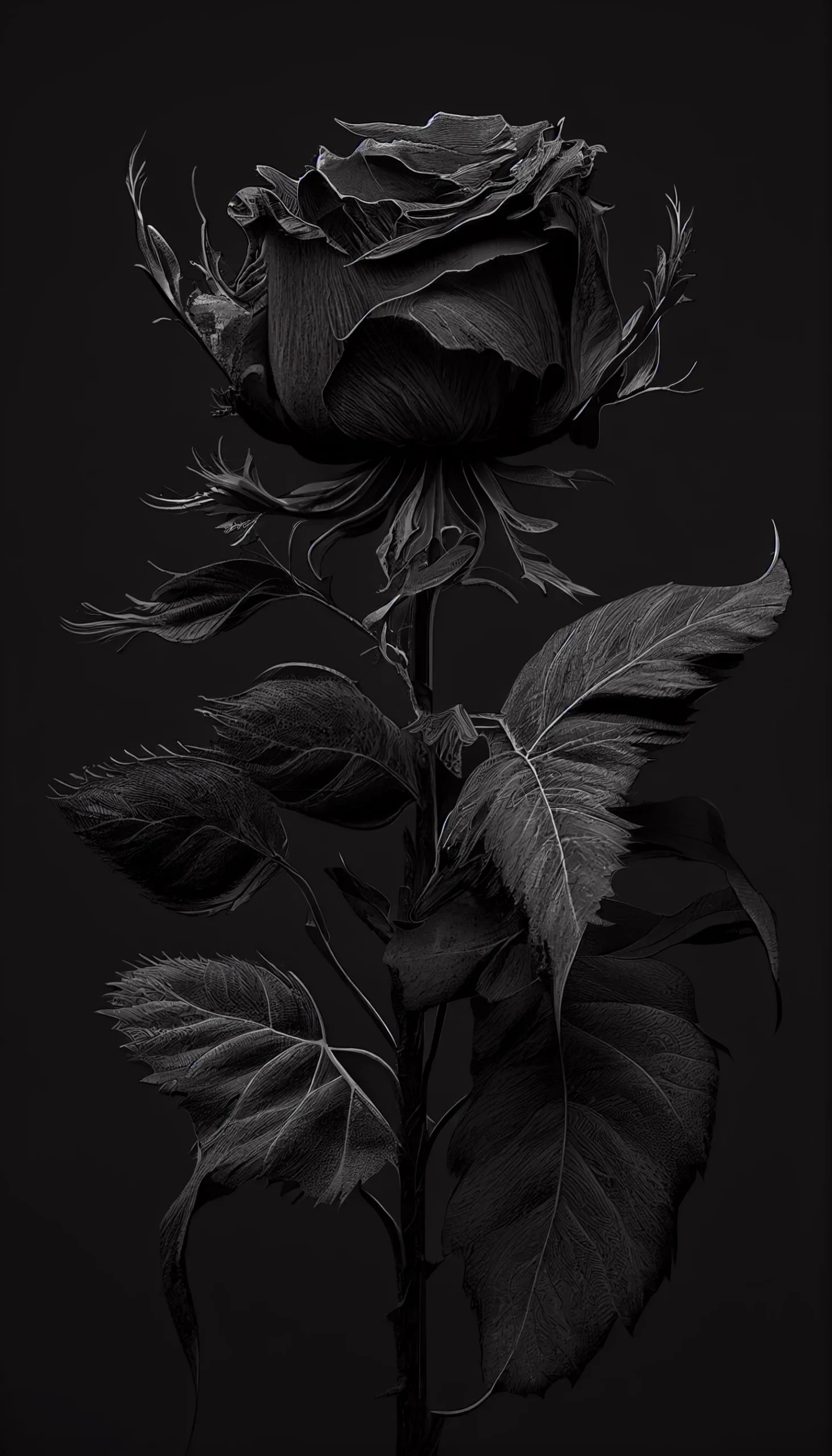
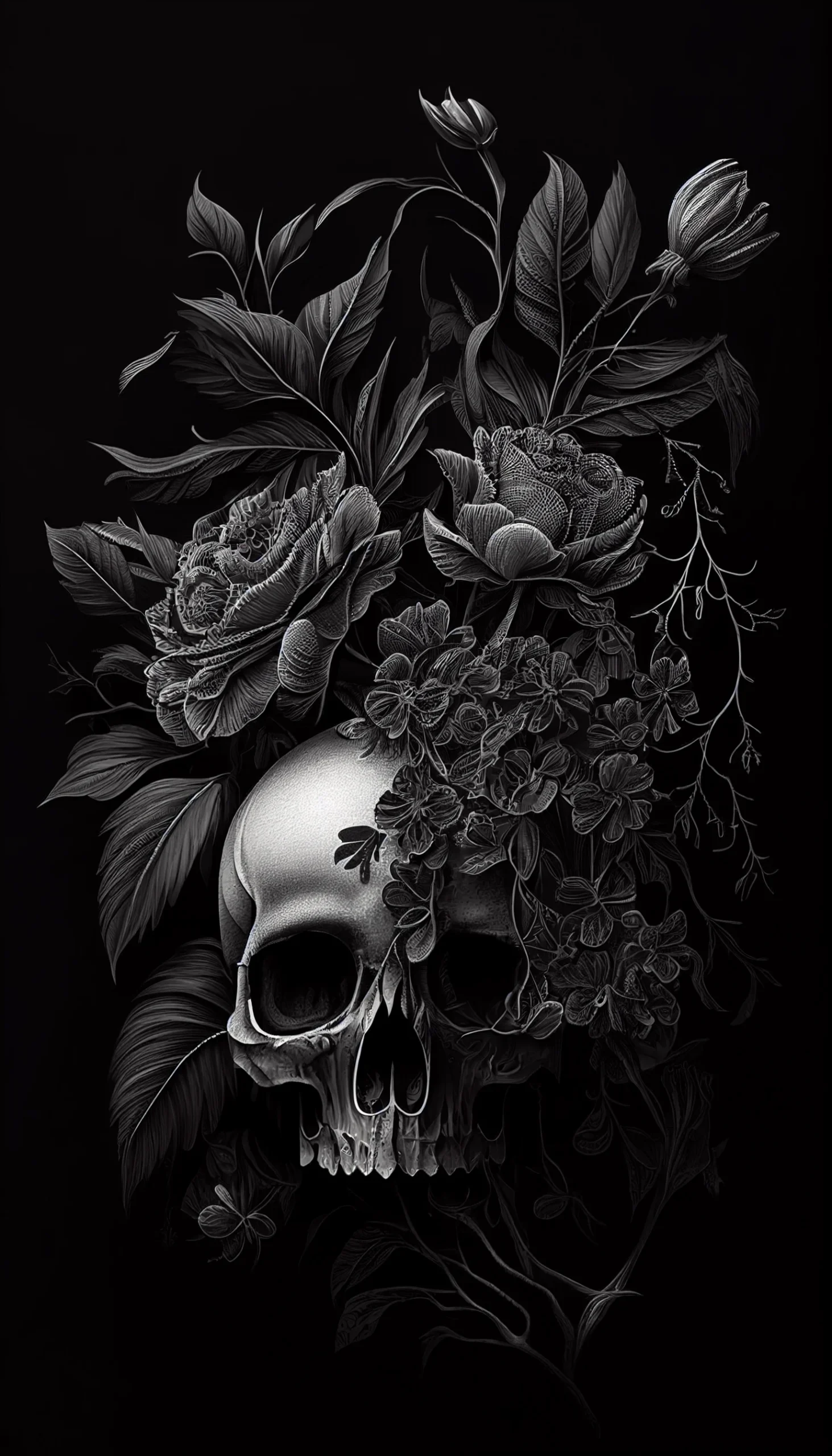
Rose and skull group: these work better when the clock sits in relatively empty space above or beside the main subject. If the clock lands directly on the rose or skull, try repositioning the crop rather than zooming in further.
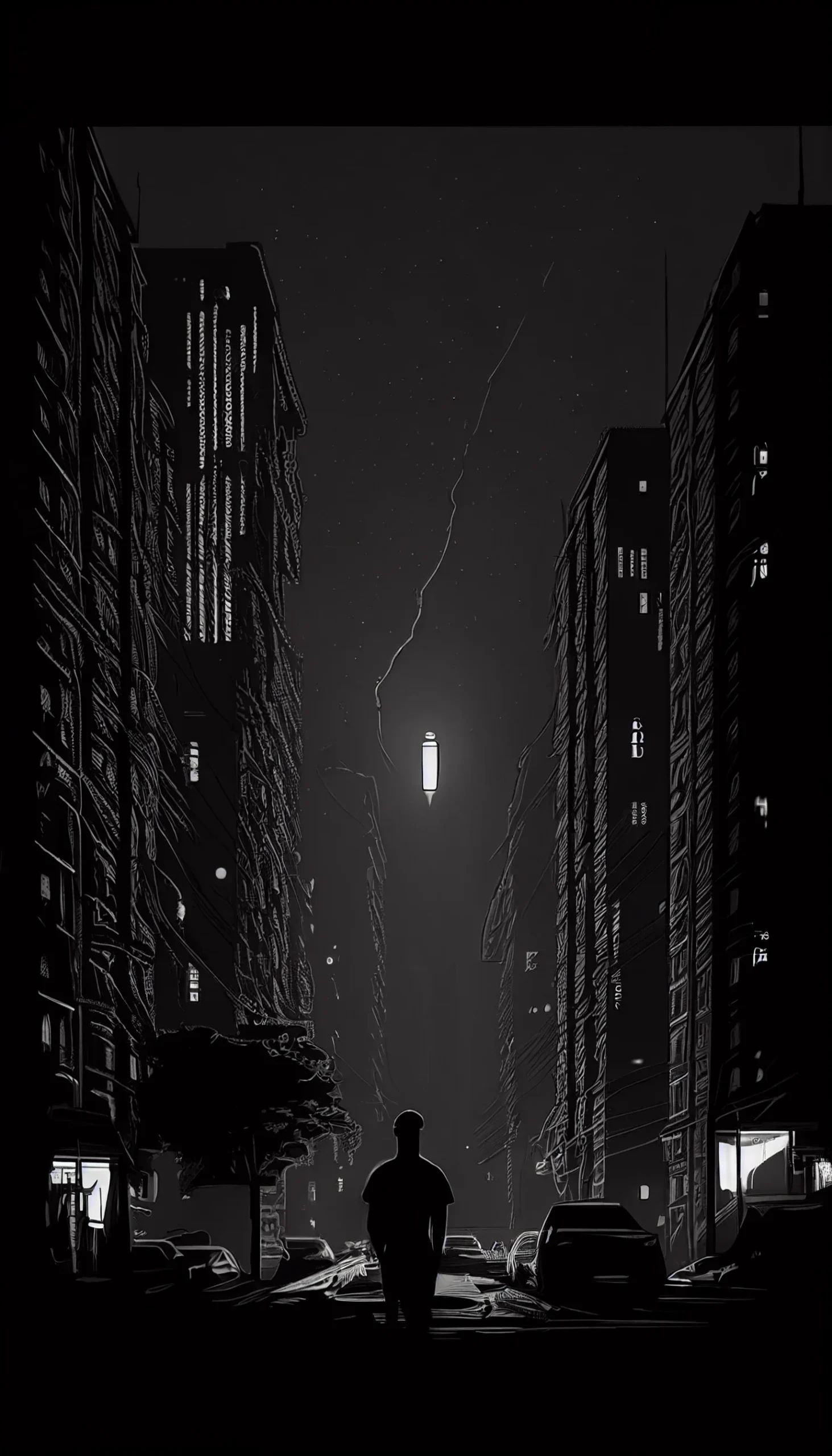
Minimal black option: this is the safest Home Screen choice in the set if you keep many apps, folders or widgets visible. The point is not visual drama; it is giving the interface enough contrast that you can find things quickly.
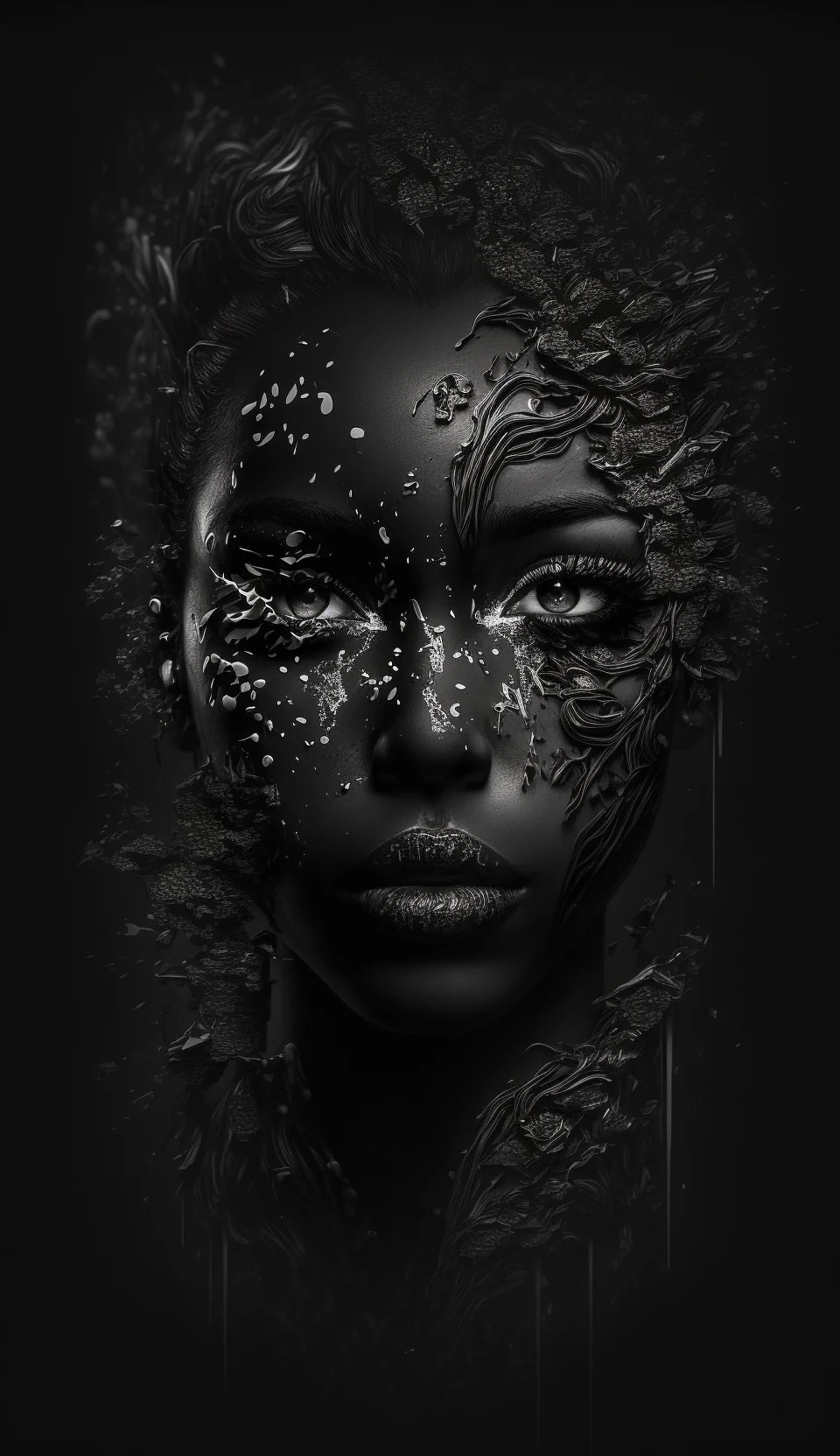
Portrait-style wallpapers: preview these on the actual Lock Screen before deciding. A portrait can look perfectly centered as an image file but feel awkward when the clock, Dynamic Island or notification stack overlaps the face.
Use the full-resolution file
Open the full-size link before saving rather than taking a screenshot. A screenshot may include browser controls or reduce the usable resolution. If iOS crops more than expected, try another image with more empty space around the main subject instead of forcing a very tight zoom.
If you want more options in the same style, browse our dark vintage aesthetic phone wallpapers or the broader aesthetic iPhone wallpaper collection.
Black aesthetic iPhone wallpaper FAQ
Are these wallpapers free to use?
Yes. You can save these wallpapers for personal use on your iPhone. Open the full-size file first for the best image quality.
Which black wallpaper works best for an iPhone Home Screen?
A simple black background with minimal detail usually works best behind apps and widgets because icons remain easier to read.
How do I keep the clock from covering the design?
Preview the wallpaper on the Lock Screen and reposition the crop so the main subject sits away from the clock, Dynamic Island and notification area.


This is beautiful