
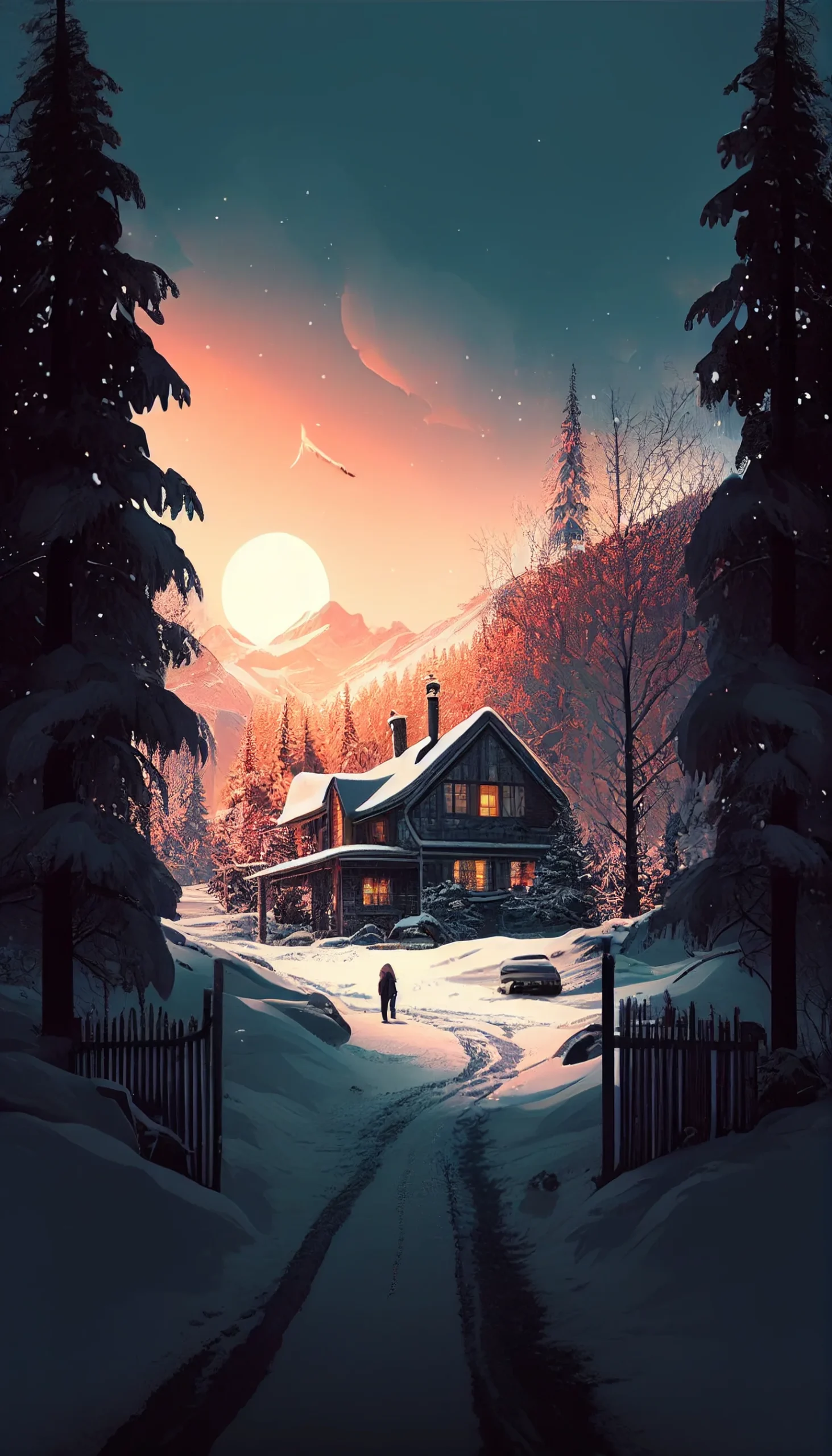
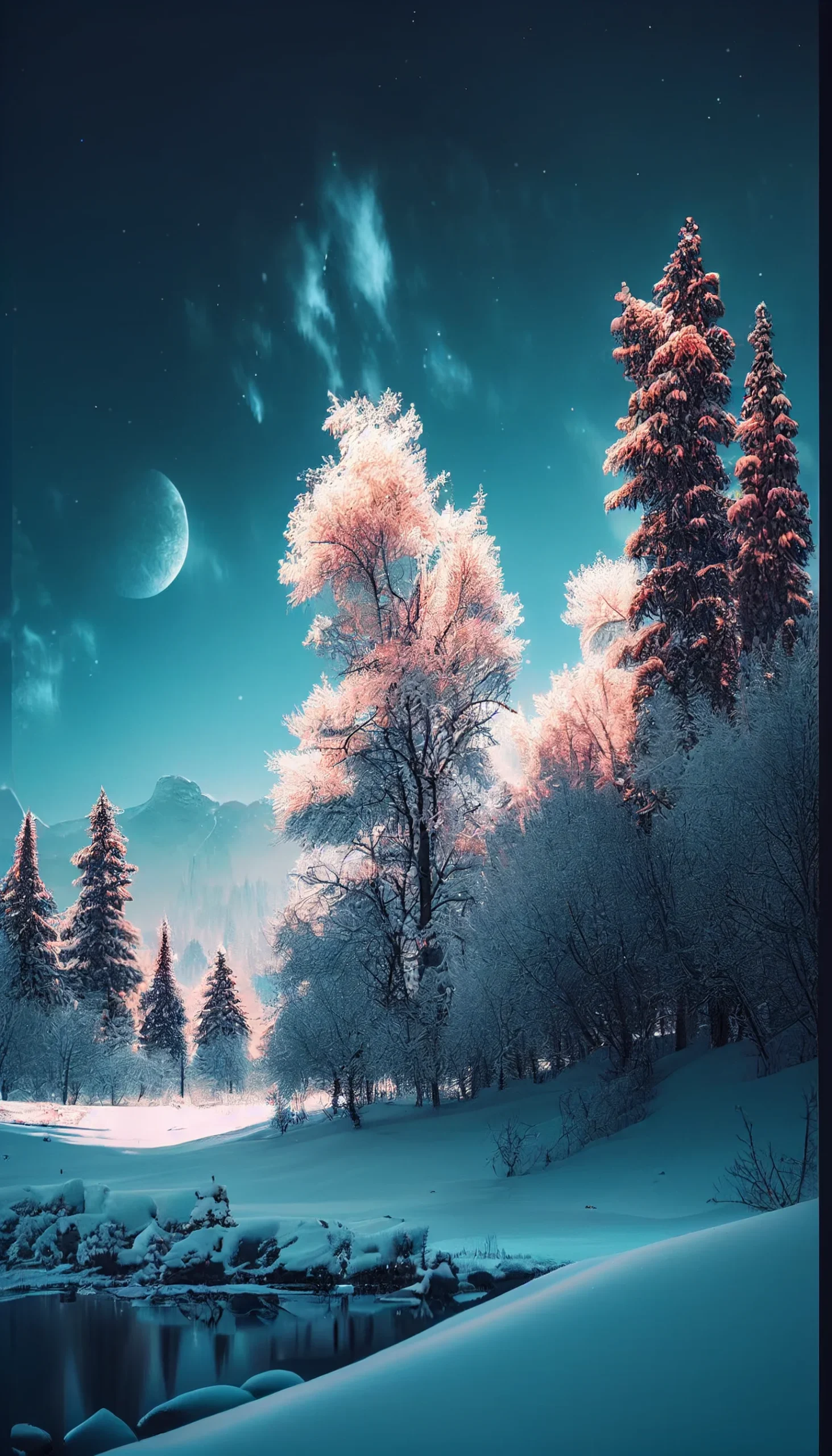
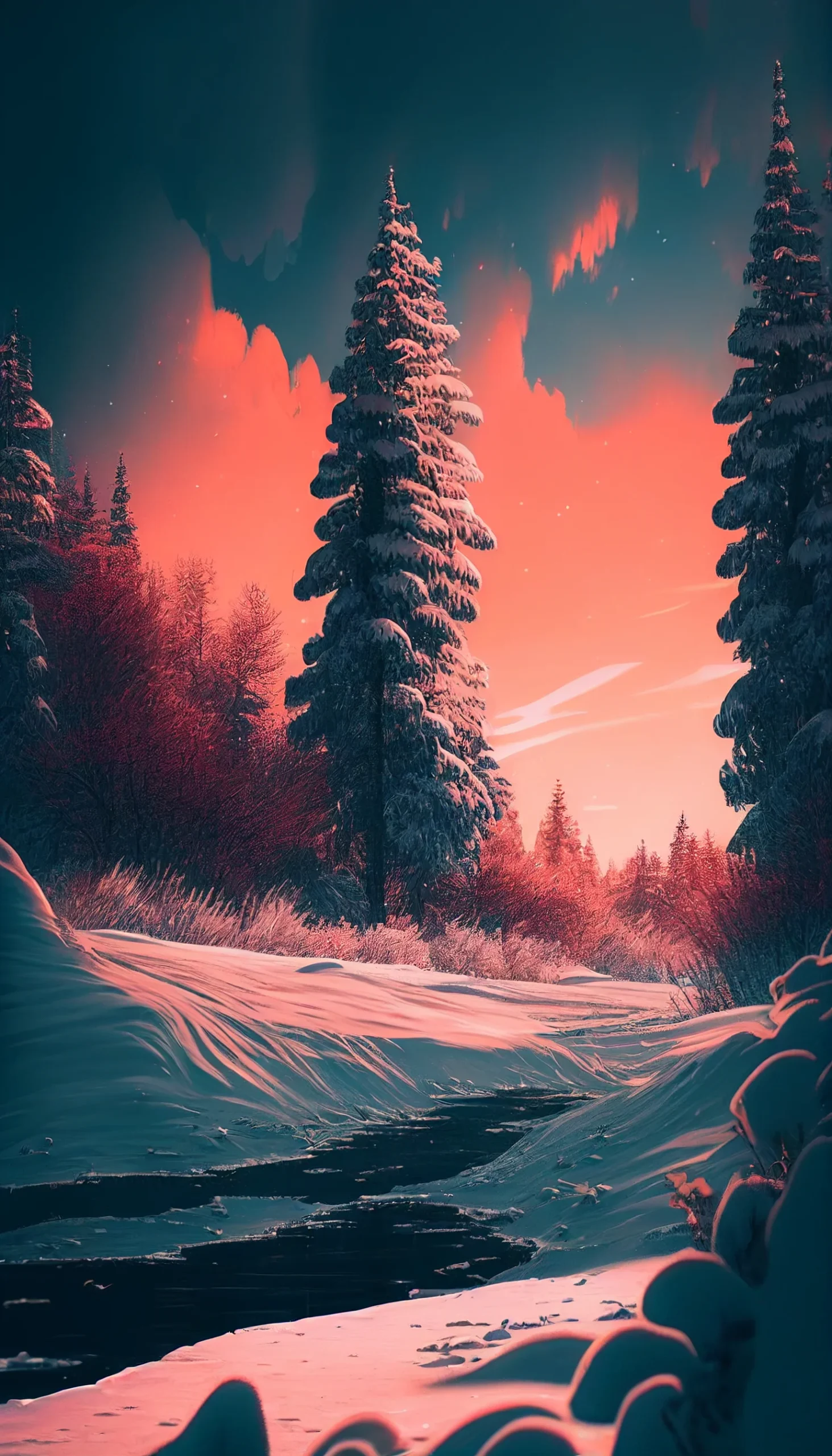
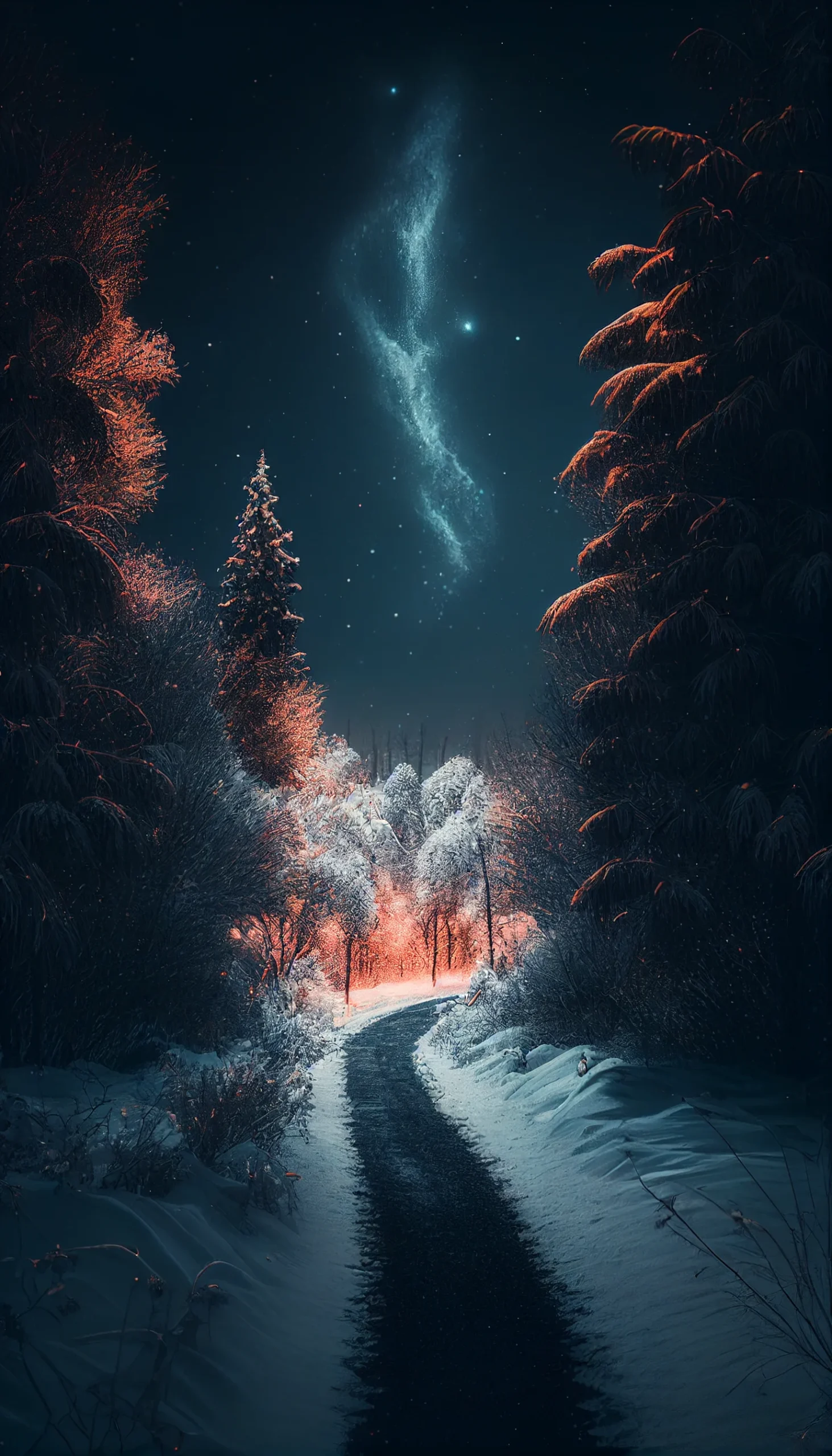
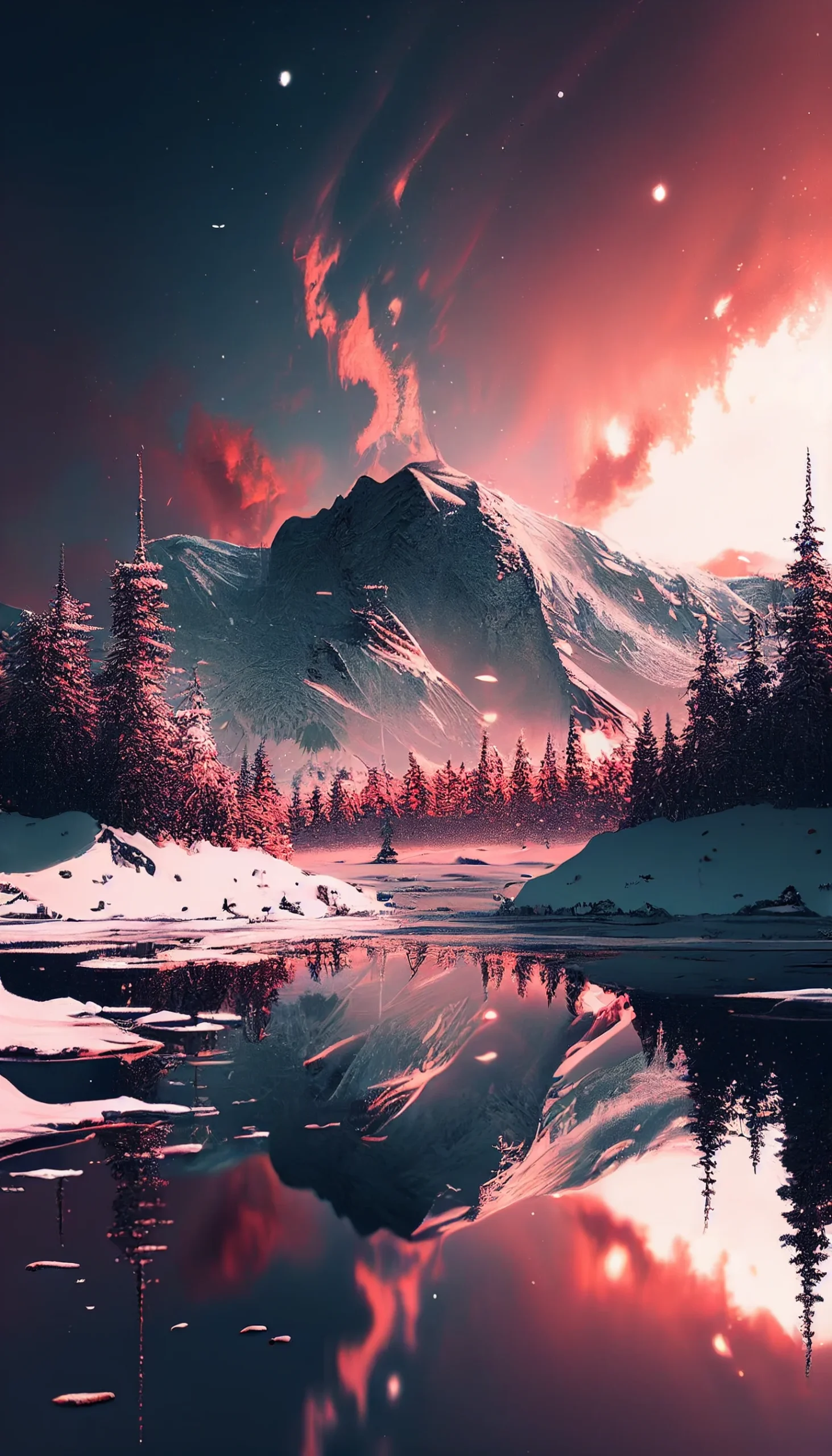
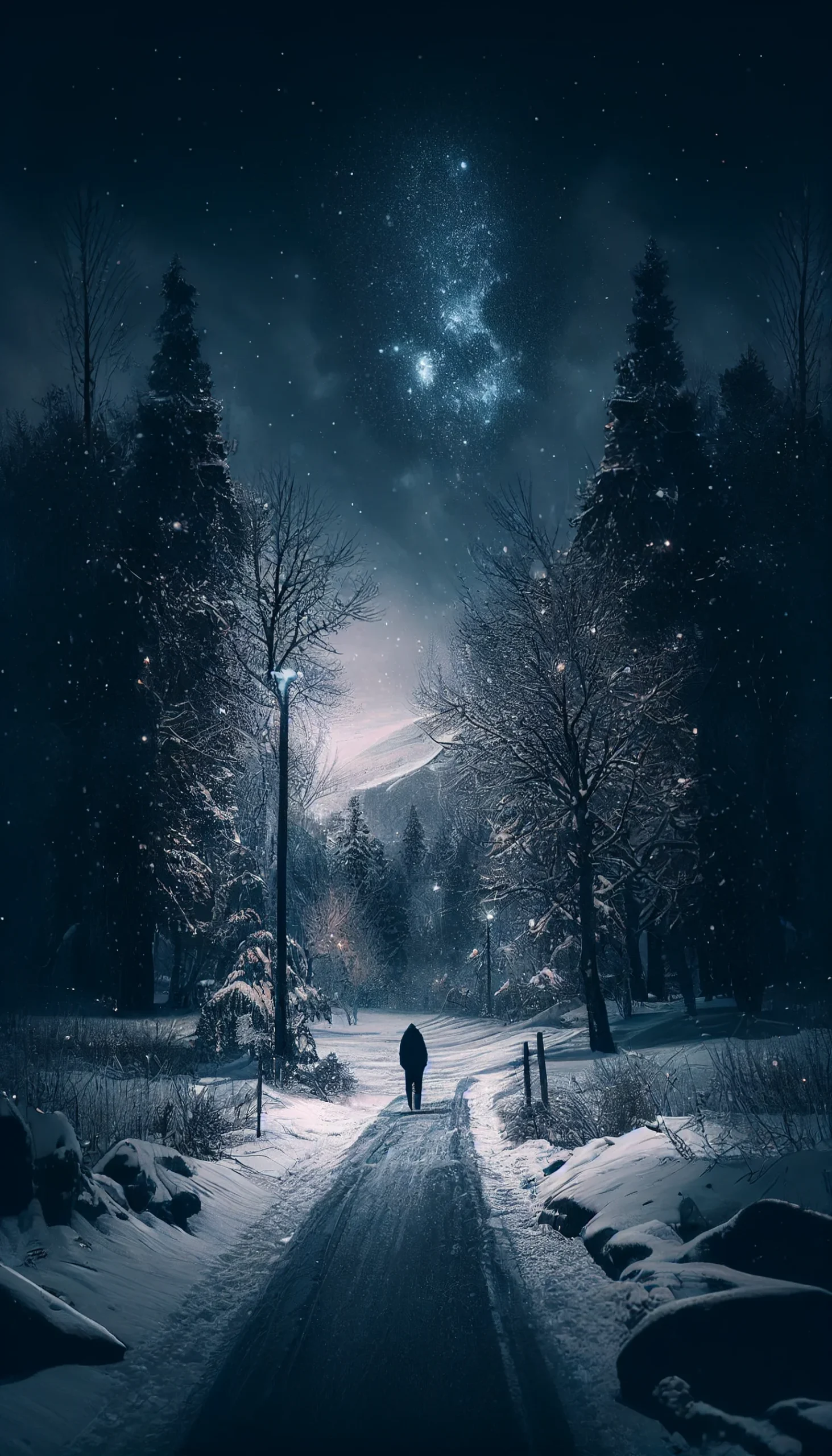
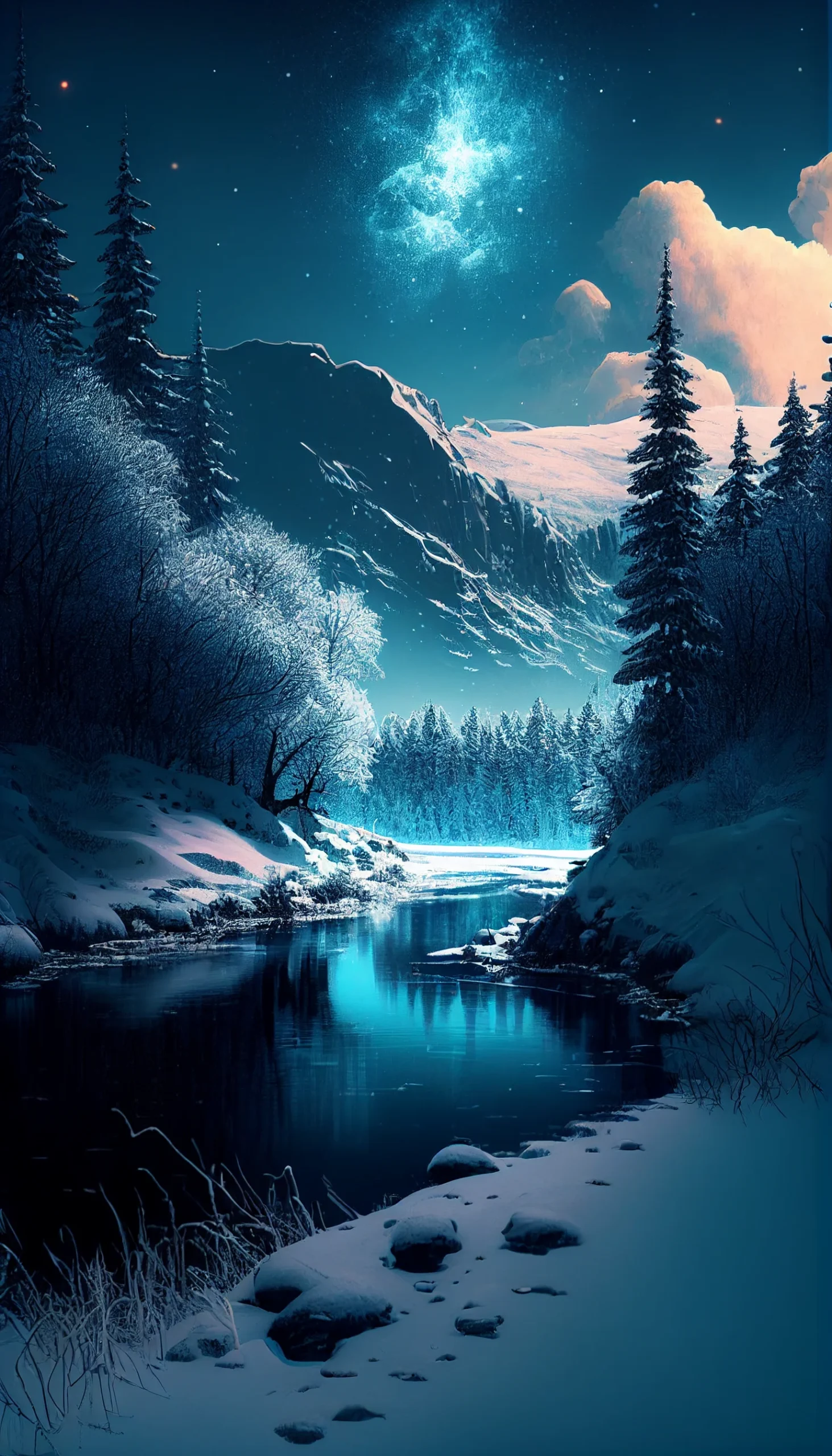
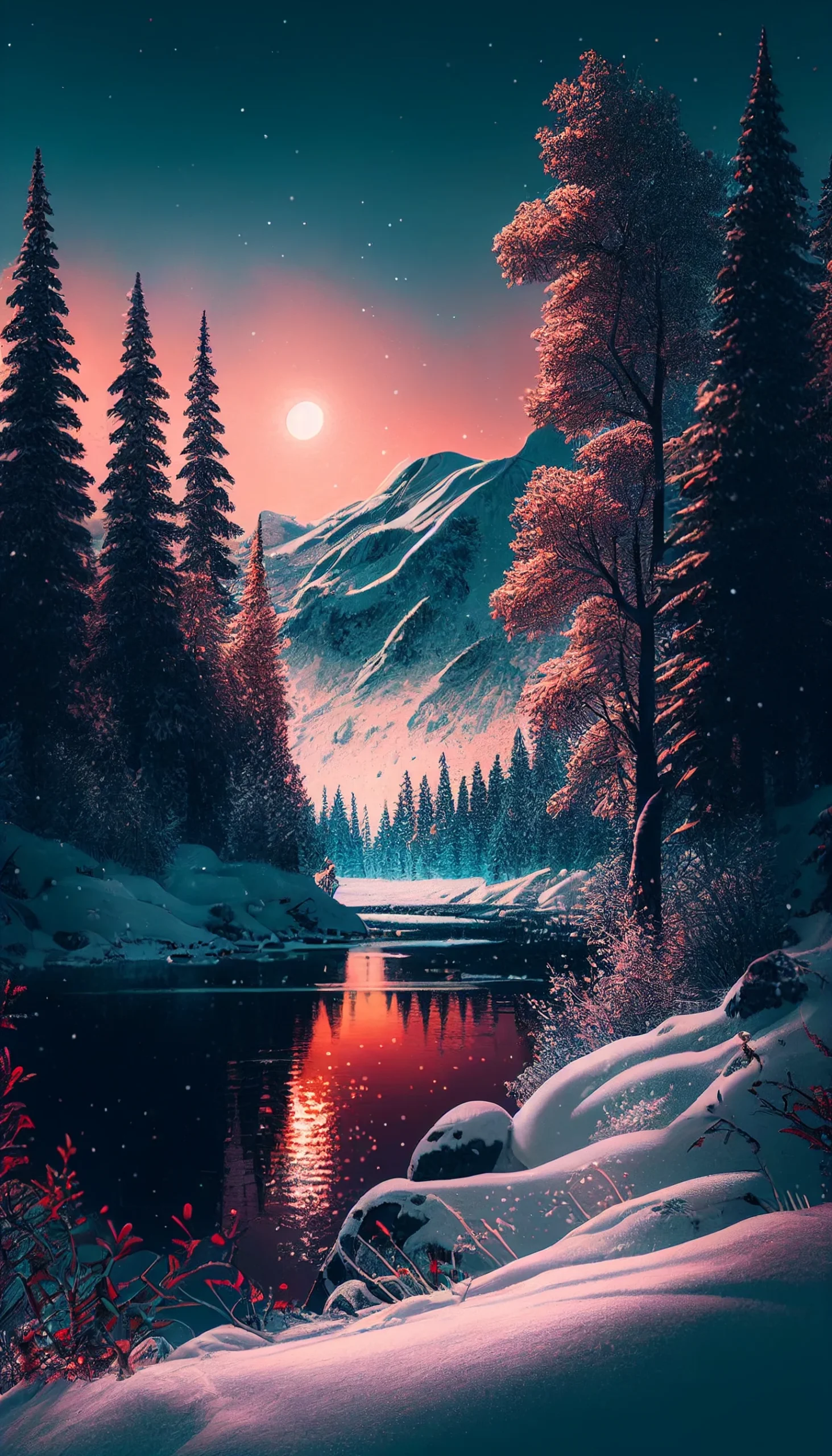
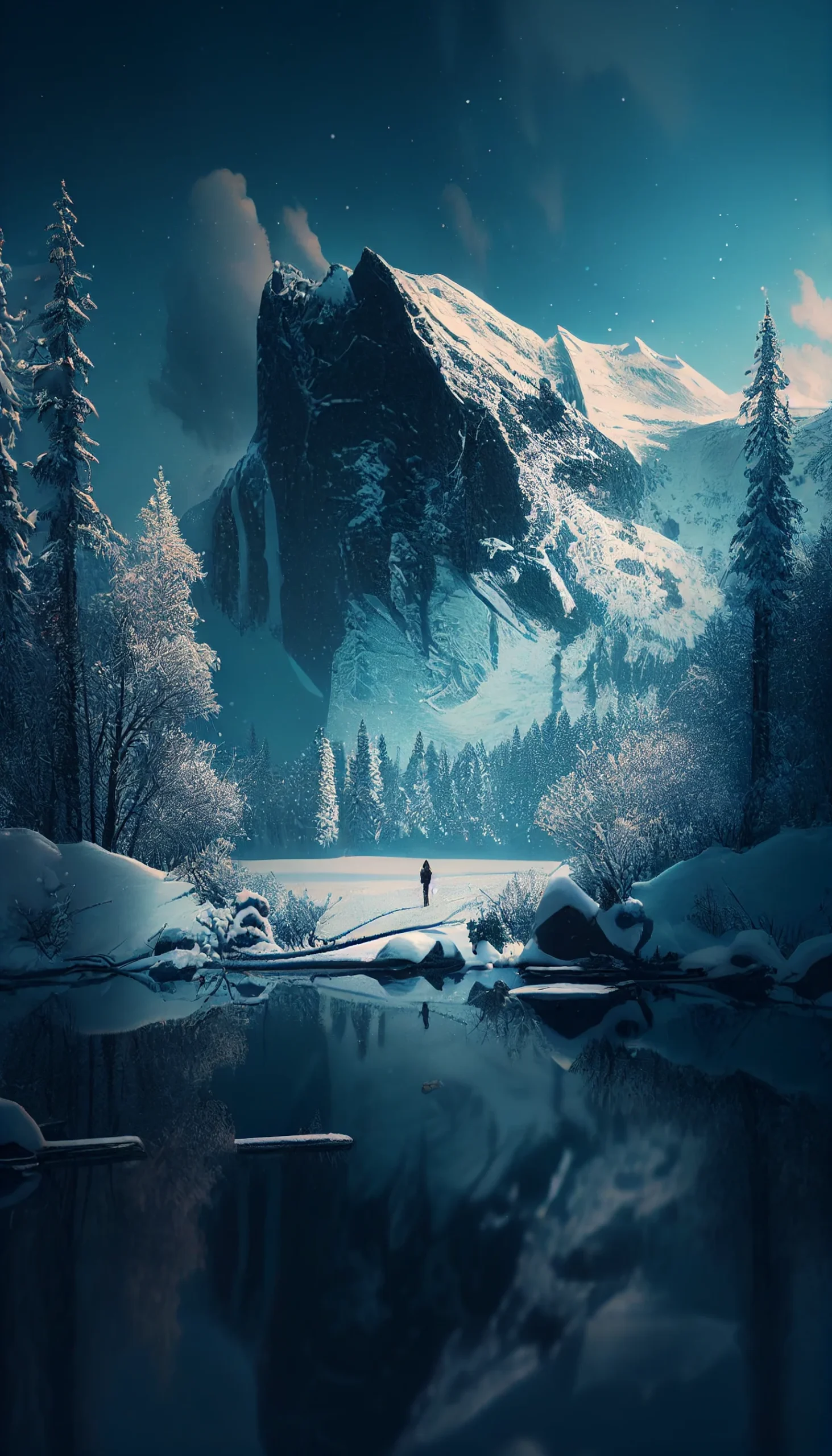
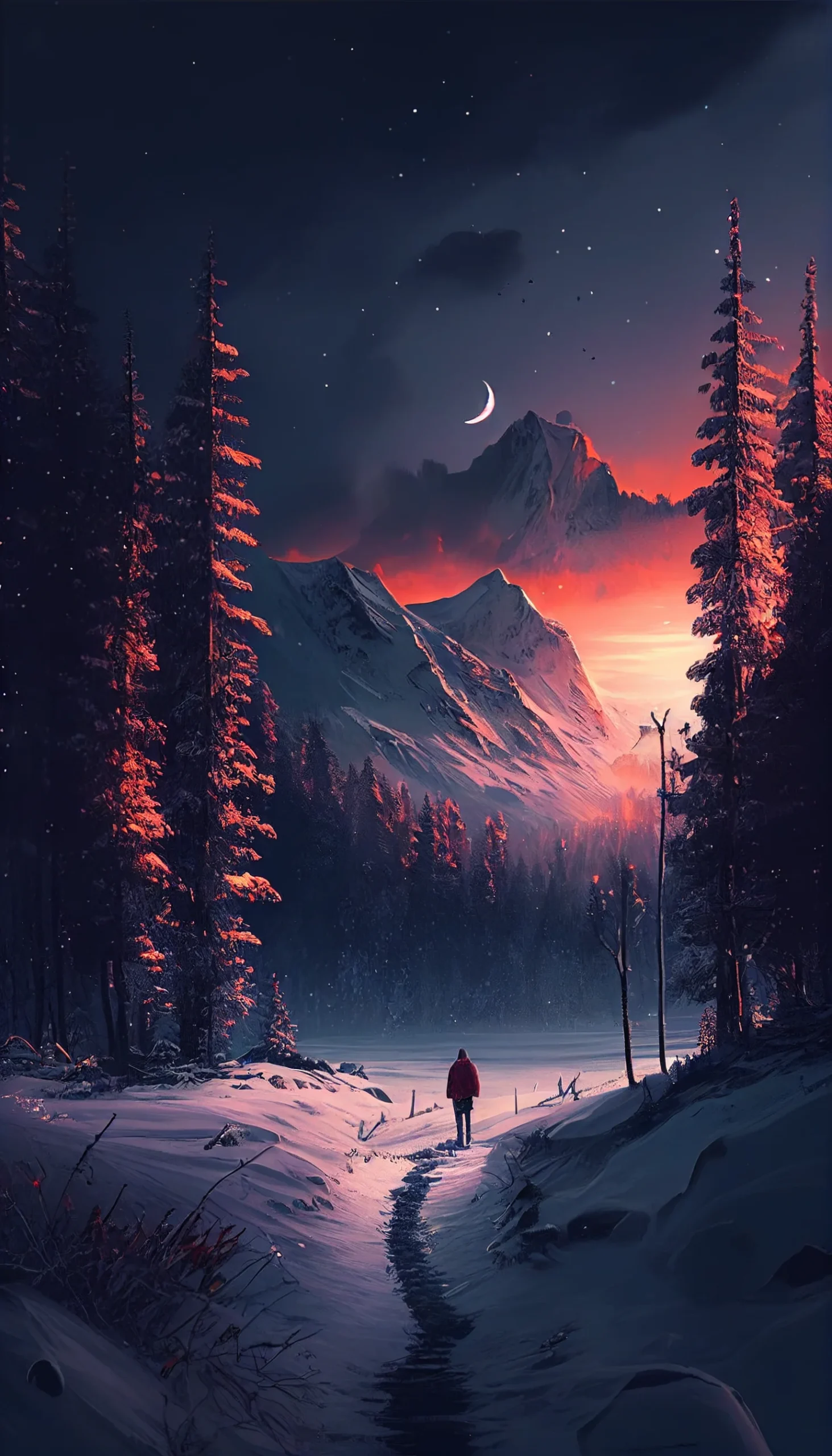
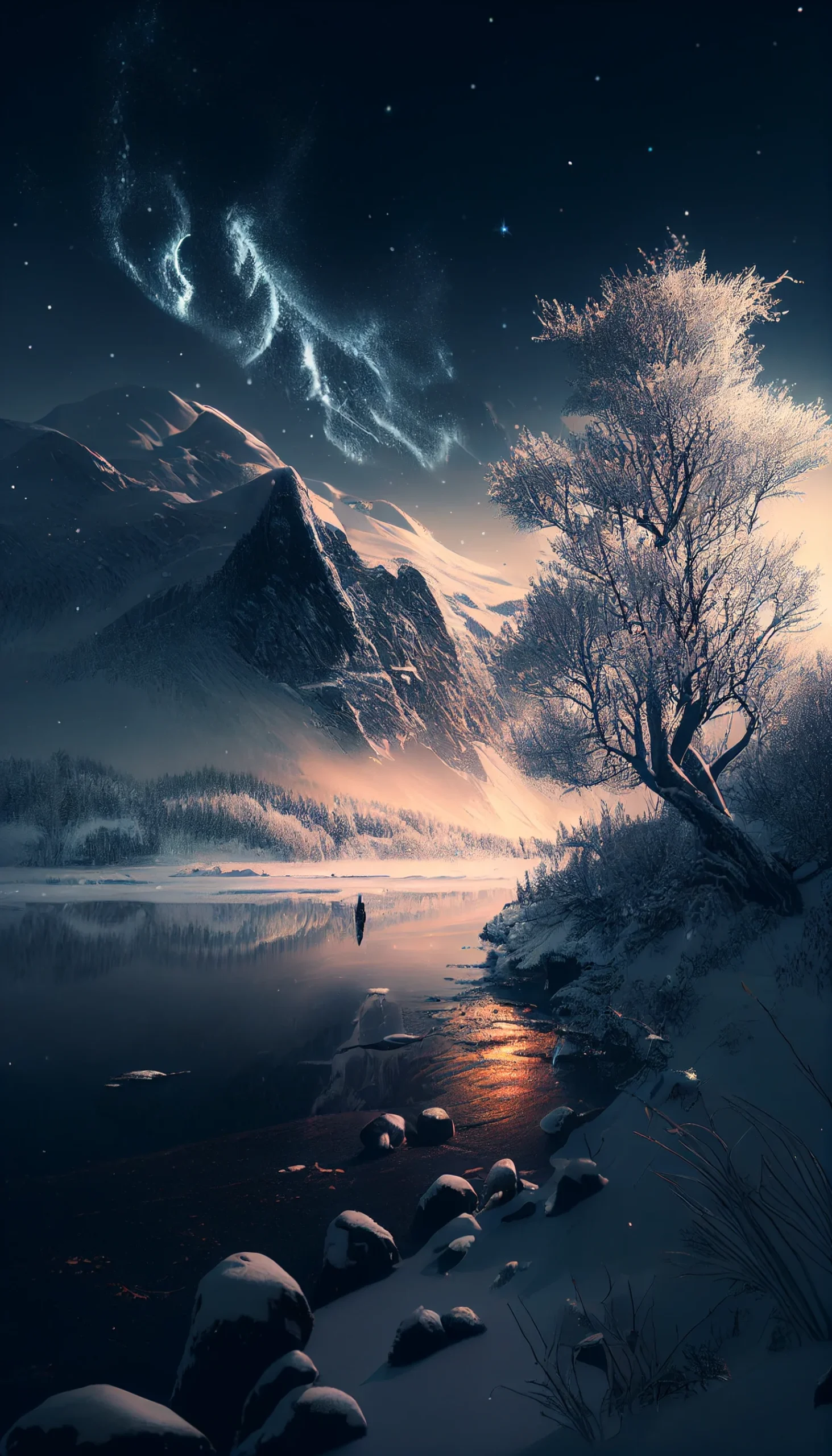
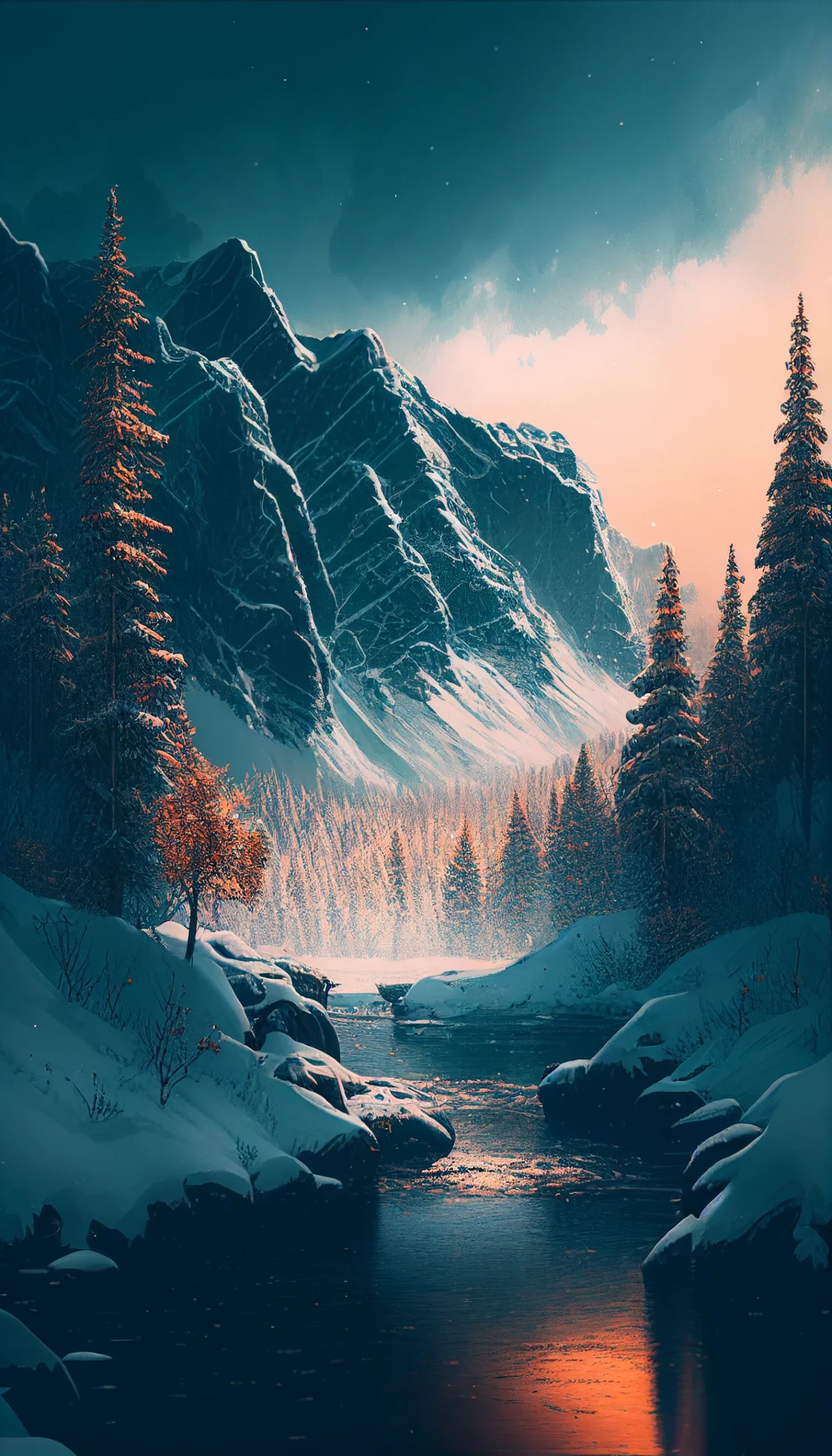
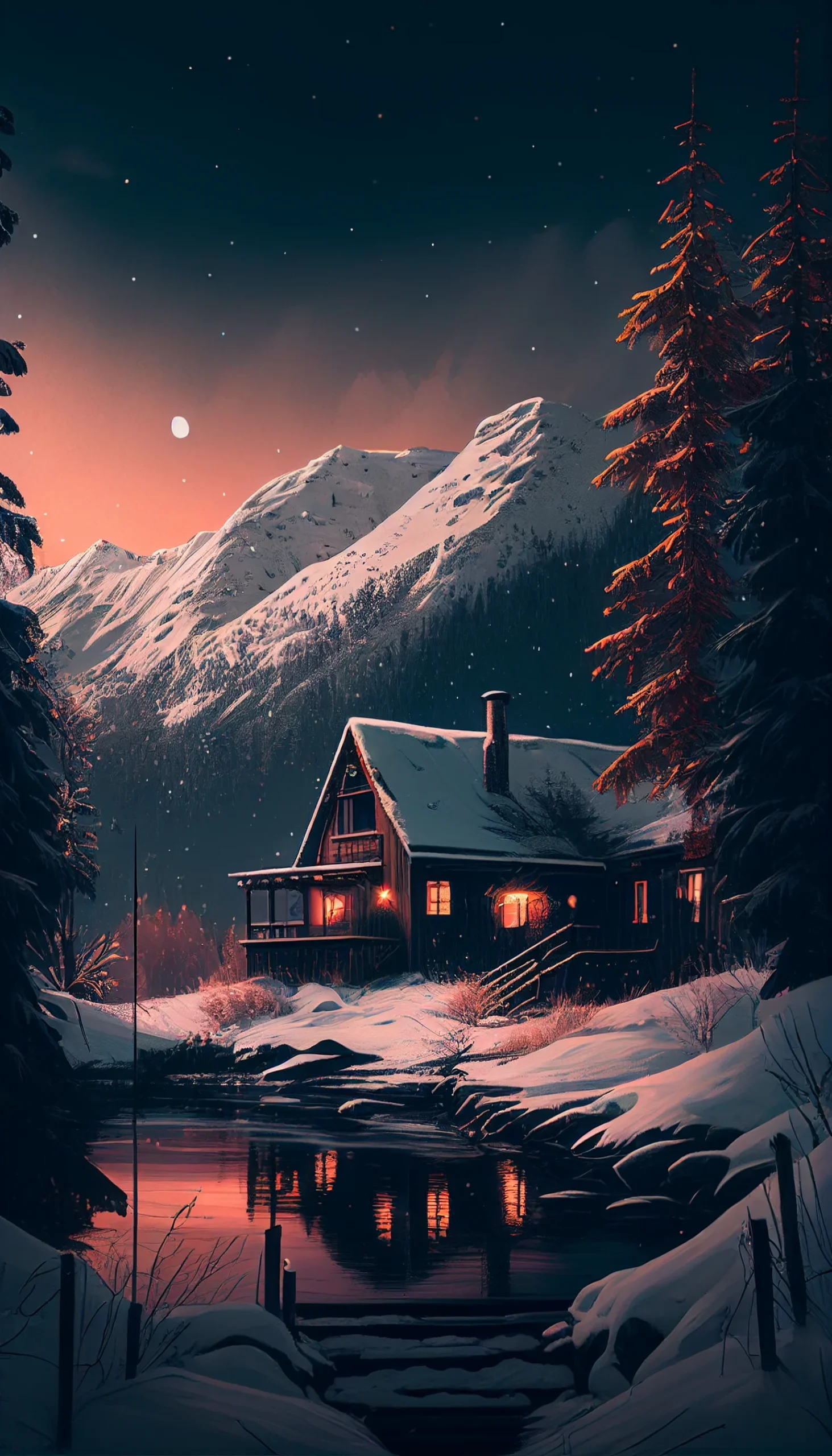
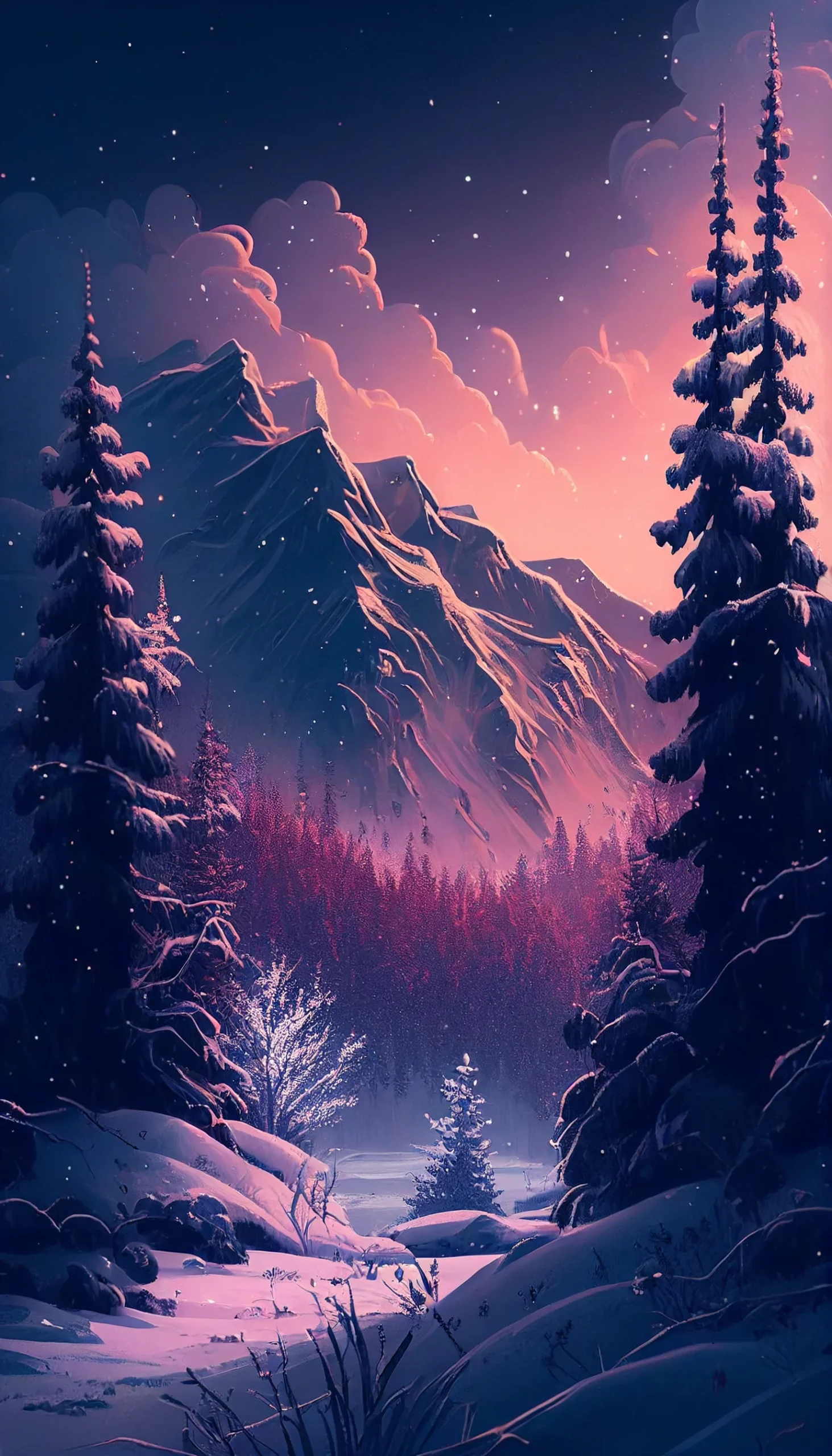
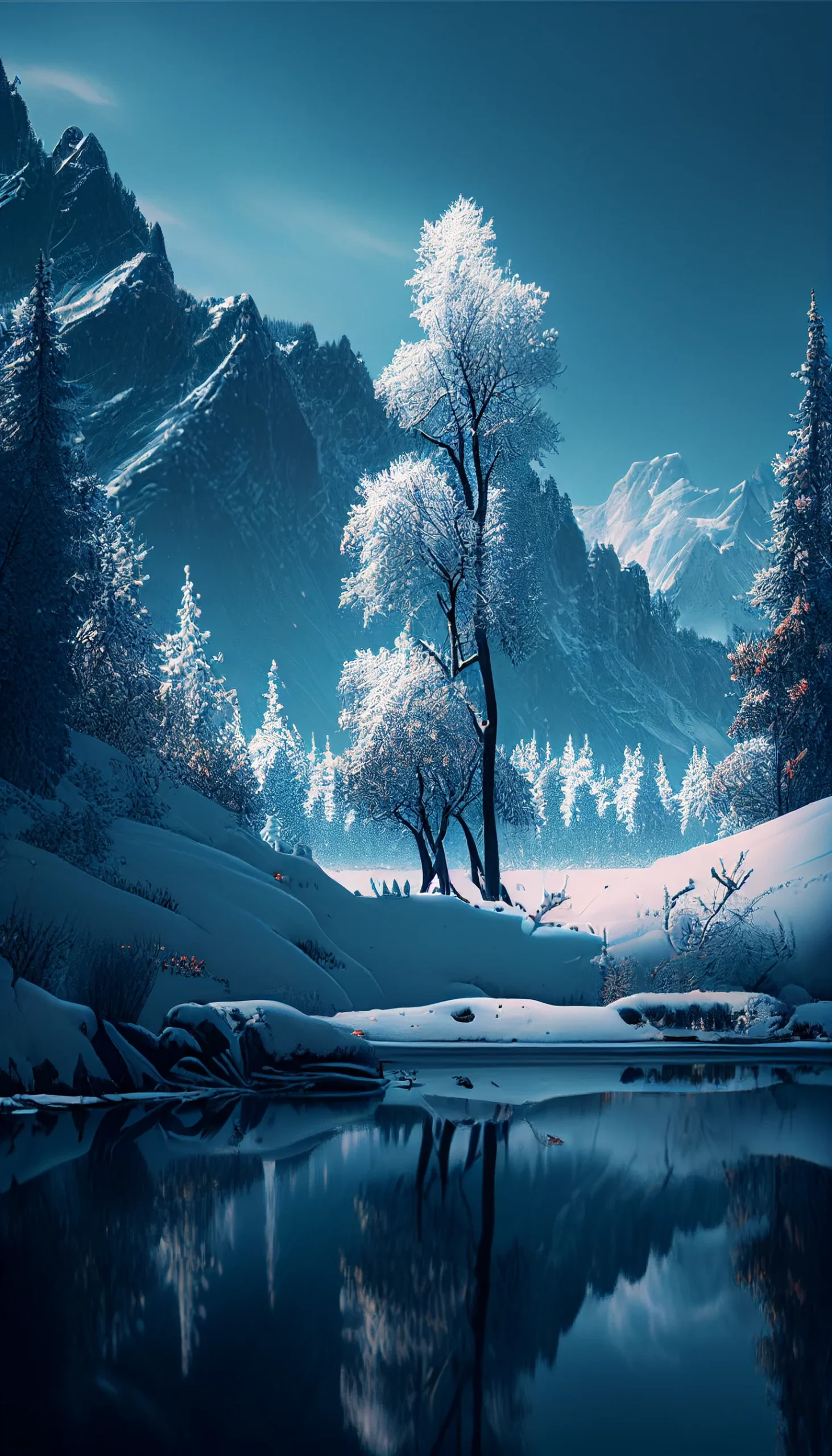
All 20 winter wallpapers on this page are 1463 × 2560 portrait files. The collection ranges from snowy scenery and cozy winter scenes to darker, minimalist and vintage-looking designs. One older filename mentions “4K,” but the actual file is still 1463 × 2560, so I am using the real dimensions rather than the label.
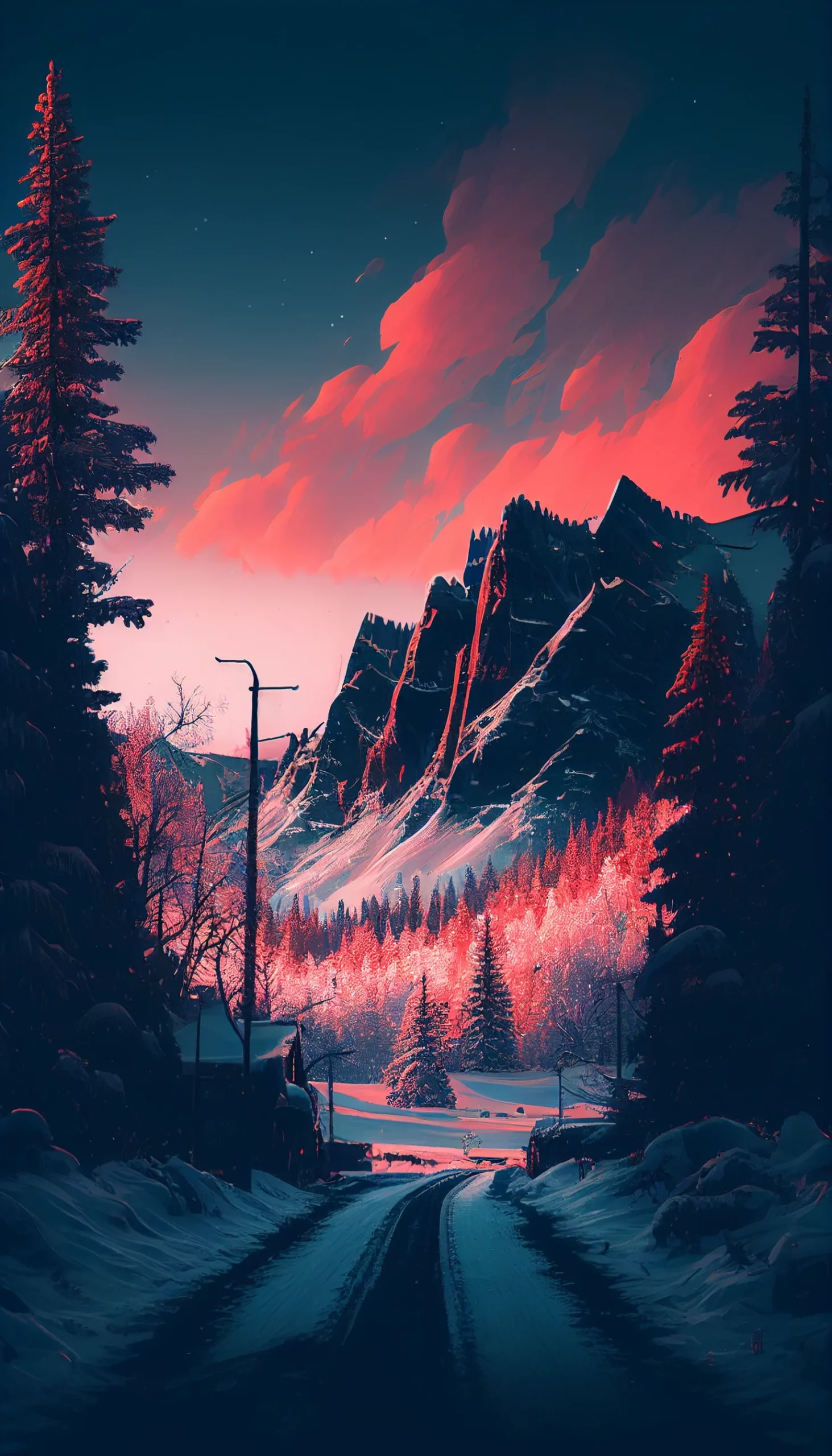
Do a 60-second Lock Screen test before choosing
A winter image can look excellent in a gallery and awkward once the iPhone clock, widgets and notifications sit on top of it. Save two or three candidates rather than deciding from the browser preview, then test each one on the actual Lock Screen.
- Check the clock zone. Look at the top third of the image. If branches, a face, a cabin roof or another important detail sits directly behind the time, try a different crop or image.
- Check bright snow behind text. White clock text can lose definition over pale sky or snow. A darker patch behind the clock usually gives cleaner contrast.
- Trigger a notification. Make sure the subject still reads when a notification card covers part of the lower screen.
- Lock and wake the phone twice. Judge the wallpaper at normal viewing distance, not while zoomed into the image. If your eye goes to the clock first and the scene second, the composition is usually working.
For the Home Screen, use a different test: open the page with the most app icons. If labels disappear into snow, trees or small high-contrast details, choose a calmer or darker design for Home and keep the more detailed scene for Lock Screen.
Pick a winter wallpaper by how you use your screen
| Style | Best use |
|---|---|
| Snowy landscape with open sky | Lock Screen; the clock has room to breathe |
| Dark winter background | Home Screen with lots of apps or widgets |
| Cozy or vintage scene | Lock Screen, especially if the subject sits below the clock |
| Busy collage or detailed snow scene | Better with a sparse Home Screen or as a Lock Screen |
Very bright snow can look clean by itself but make white text harder to read. If that happens, choose a darker winter image instead of forcing the same wallpaper to work with every widget and icon layout.
Save the full-size image and use your phone’s crop preview to position it. For related styles, browse the aesthetic iPhone, dark vintage and pastel wallpaper sets.
Winter wallpaper collection
Want the original file rather than a browser preview? Use the full-size links below. Each one opens the 1463 × 2560 source image directly.
- Open winter wallpaper 1 full size
- Open winter wallpaper 2 full size
- Open winter wallpaper 3 full size
- Open winter wallpaper 4 full size
- Open winter wallpaper 5 full size
- Open winter wallpaper 6 full size
- Open winter wallpaper 7 full size
- Open winter wallpaper 8 full size
- Open winter wallpaper 9 full size
- Open winter wallpaper 10 full size
- Open winter wallpaper 11 full size
- Open winter wallpaper 12 full size
- Open winter wallpaper 13 full size
- Open winter wallpaper 14 full size
- Open winter wallpaper 15 full size
- Open winter wallpaper 16 full size
- Open winter wallpaper 17 full size
- Open winter wallpaper 18 full size
- Open winter wallpaper 19 full size
- Open winter wallpaper 20 full size
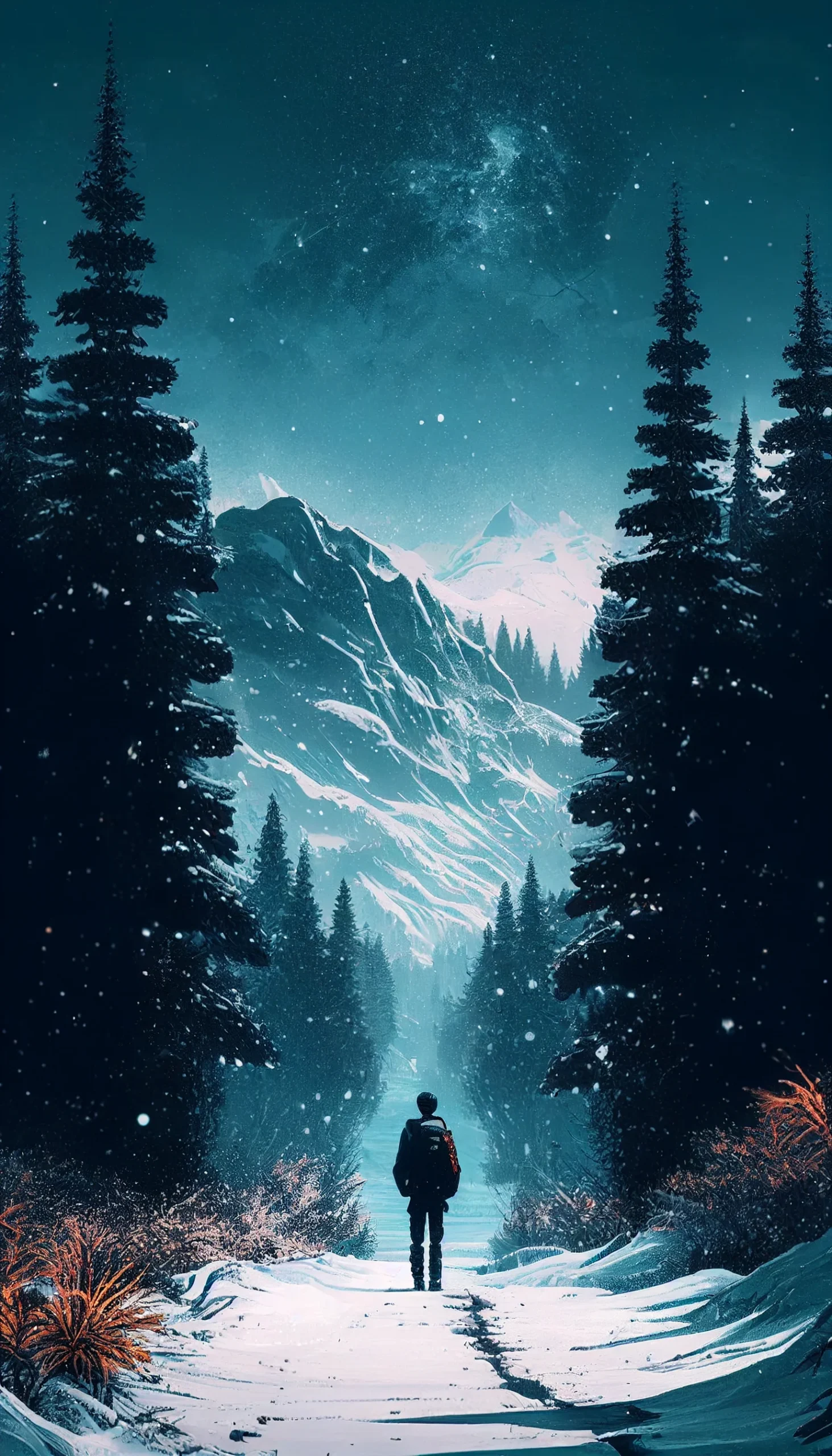
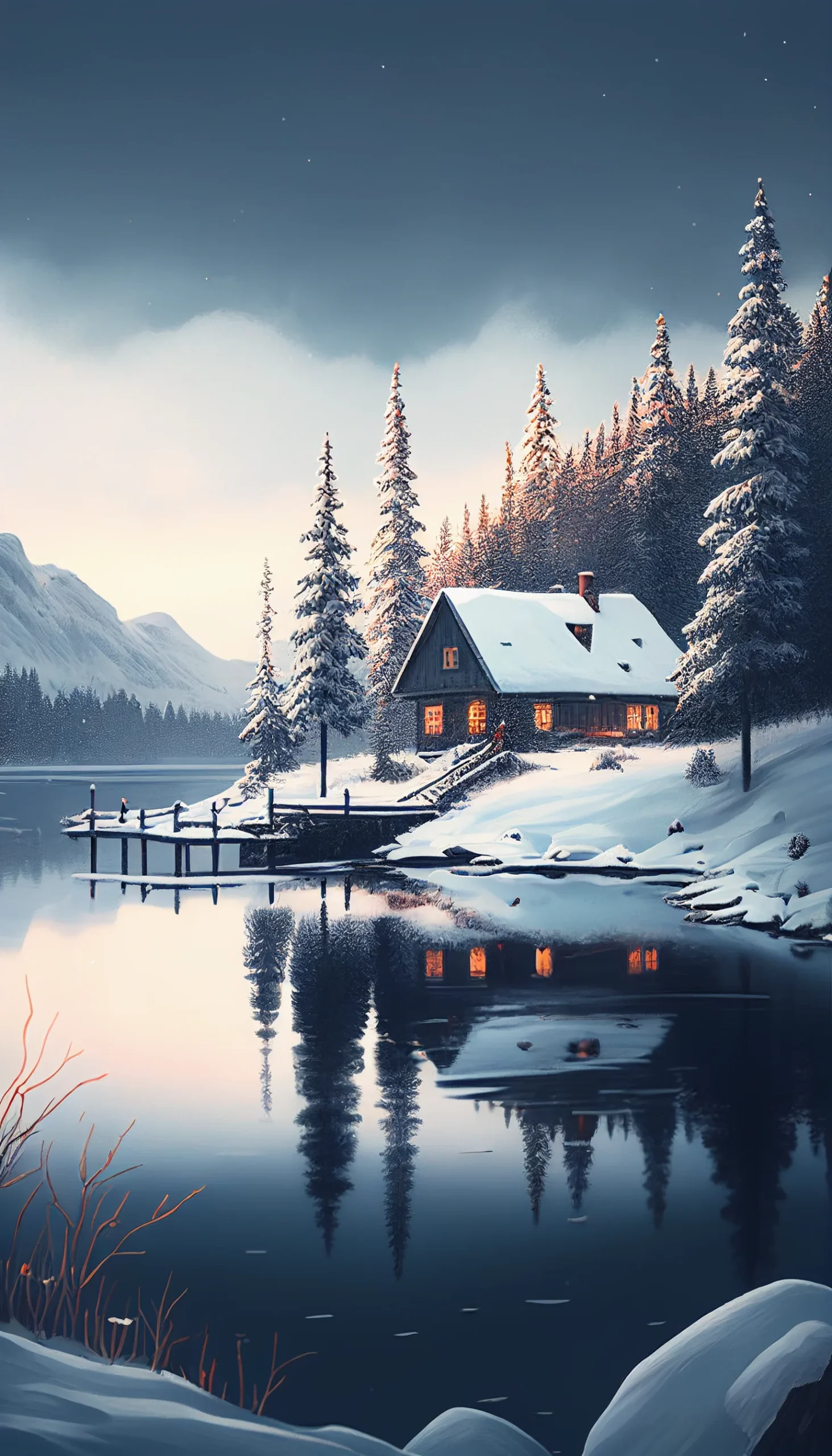
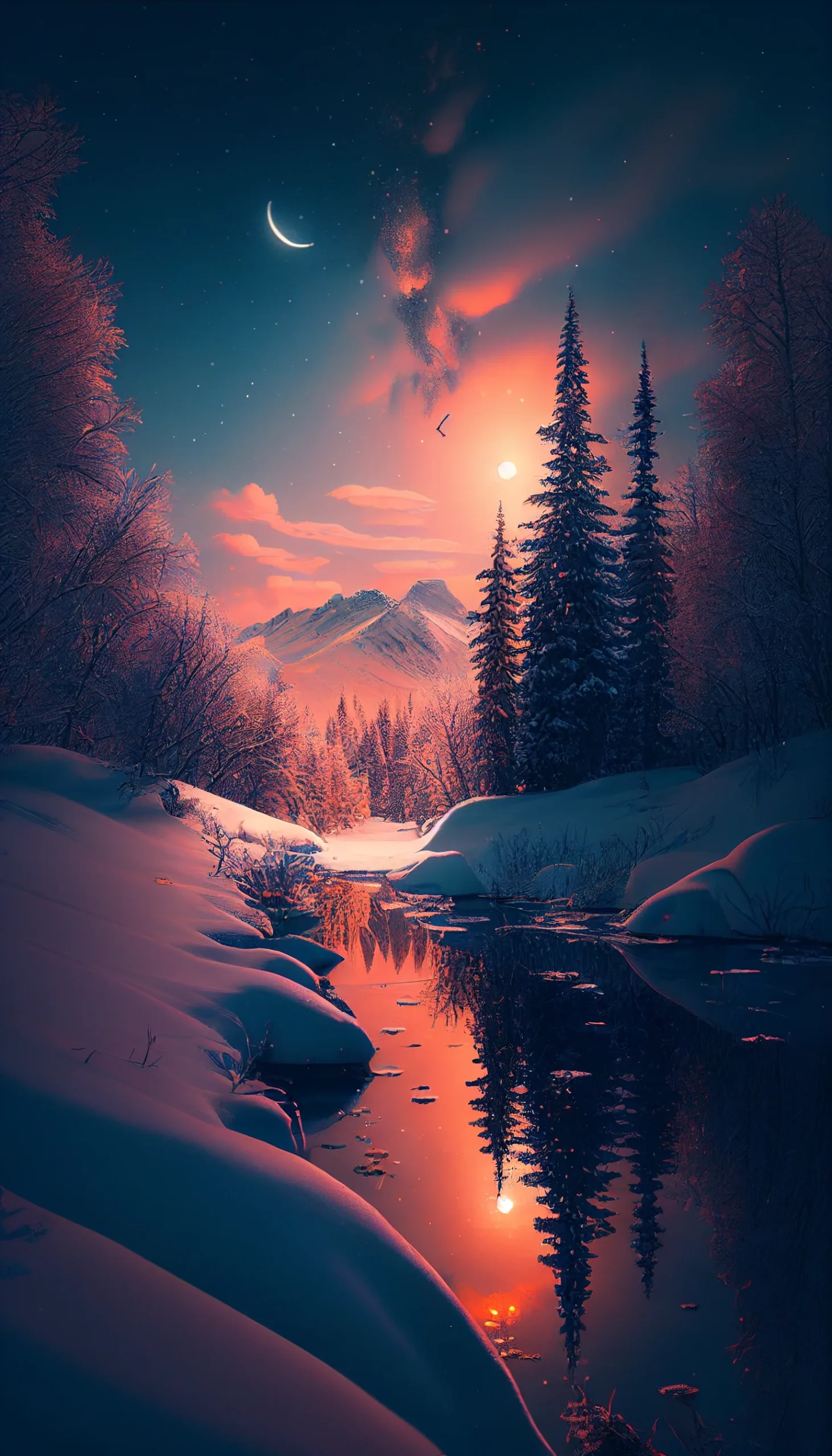
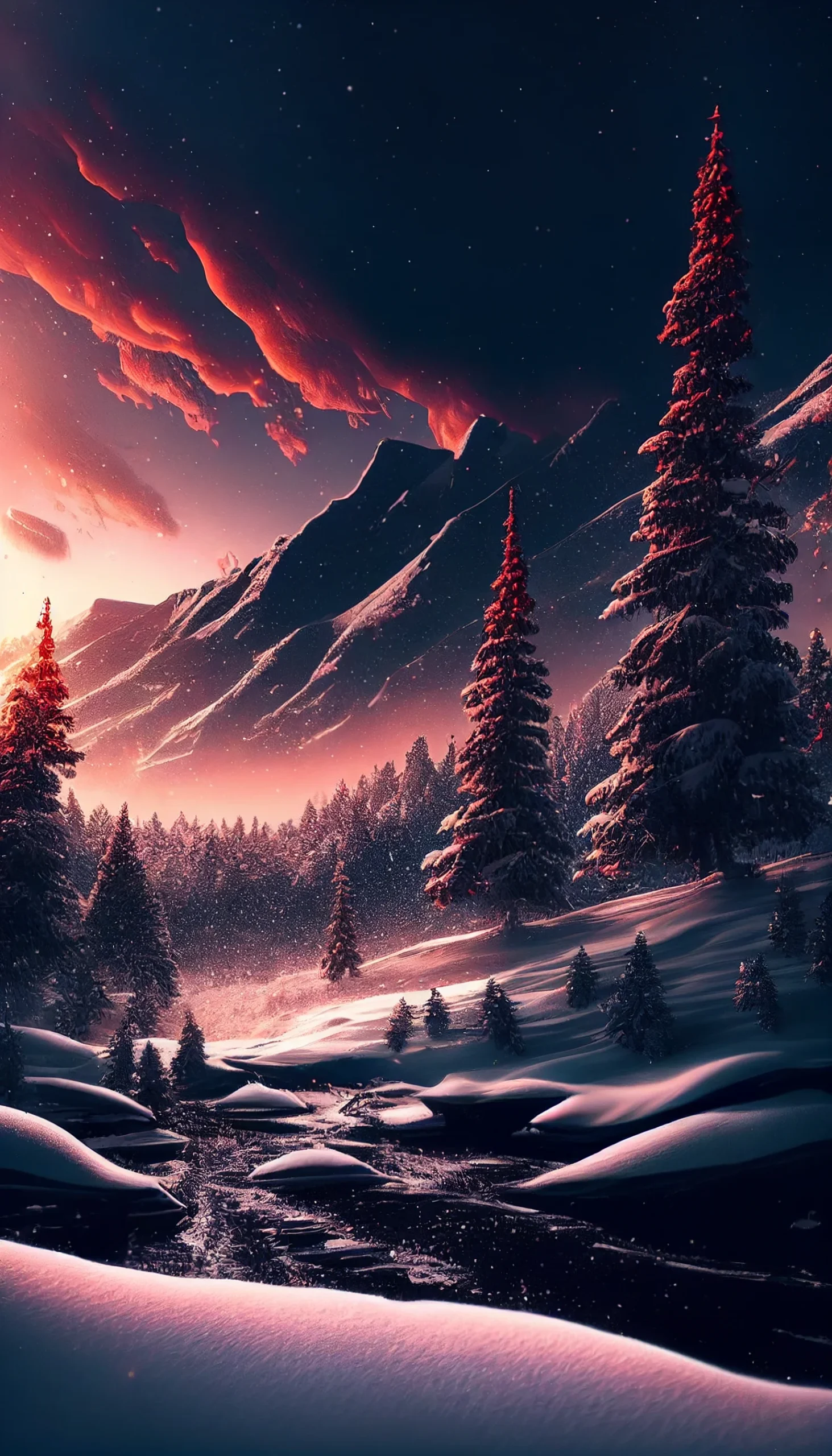
Fix common winter wallpaper problems
| What looks wrong | What to try first |
|---|---|
| The clock disappears into the snow | Reposition toward a darker sky or choose a design with more contrast in the upper third. |
| The subject is cut off | Reduce the crop and keep the focal point away from the extreme top and bottom edges. |
| App icons feel visually noisy | Use the detailed image on Lock Screen and a darker or simpler winter image on Home Screen. |
| The saved image looks soft | Open the full-size link rather than saving a browser thumbnail or screenshot. |
Use a winter pair instead of forcing one image to do both jobs
A useful setup is a scenic Lock Screen plus a quieter Home Screen from the same collection. For example, keep a snowy cabin or detailed vintage scene where it can be seen unobstructed, then use a darker minimalist winter image behind apps. The two screens still feel coordinated, but readability does not depend on finding one image that works everywhere.
If you use Focus modes, you can also assign a calmer winter background to work or study and a more decorative one to a personal Focus. That gives the collection a practical use beyond simply rotating images.
Before you keep a wallpaper
- Open the full-size file rather than taking a screenshot.
- Check the clock, widgets and at least one notification on the Lock Screen.
- Check app-name readability on your busiest Home Screen page.
- Make sure the main subject survives the phone’s crop.
- If one image fails either screen, pair two complementary winter designs instead.

